
Week 2 study notes
Screen Reading in the AI-Native Product Era
Read one product screen as a user moment, identify screen job, hierarchy, primary action, supporting information, status, friction, and accessibility concerns, use AI critique critically, then create one evidence-backed product decision.
Lesson focus
A screen is a product moment. It should orient the user, show what matters, make the main action visible, explain status or feedback, reduce avoidable friction, and give AI enough evidence to support critique without replacing judgment.
Learning materials
Includes study notes, references, and practice examples.
Guided tutorial path
Work through the lesson by section. Each stop names the evidence to produce before the final readiness gate.
Lesson contents
Lecture spine
Session 2 moves the program from ordinary design noticing into product-screen judgment. In Session 1, the learner learned that design helps people act and that AI must be checked. Now she applies that logic to one screen and asks: what user moment is this, what is the screen job, what does the user notice, what can they do next, what feedback do they receive, and what might block confidence?
Session 2 moves the program from ordinary design noticing into product-screen judgment. In Session 1, the learner learned that design helps people act and that AI must be checked. Now she applies that logic to one screen and asks: what user moment is this, what is the screen job, what does the user notice, what can they do next, what feedback do they receive, and what might block confidence?
A screen is not a poster. A poster may mainly communicate a message. A product screen usually supports a task. It shows information, offers controls, responds to actions, gives feedback, and carries risk. If the learner can read those pieces clearly, she can later write better briefs, critique AI output, and explain product decisions.
The standard for this session is evidence-based screen reading with AI acceleration. The learner should not say only "it looks good" or "it is confusing." She should point to visible details: the title, button label, order of information, missing status, hidden cost, low contrast, crowded choices, unclear next step, or unsupported AI suggestion.
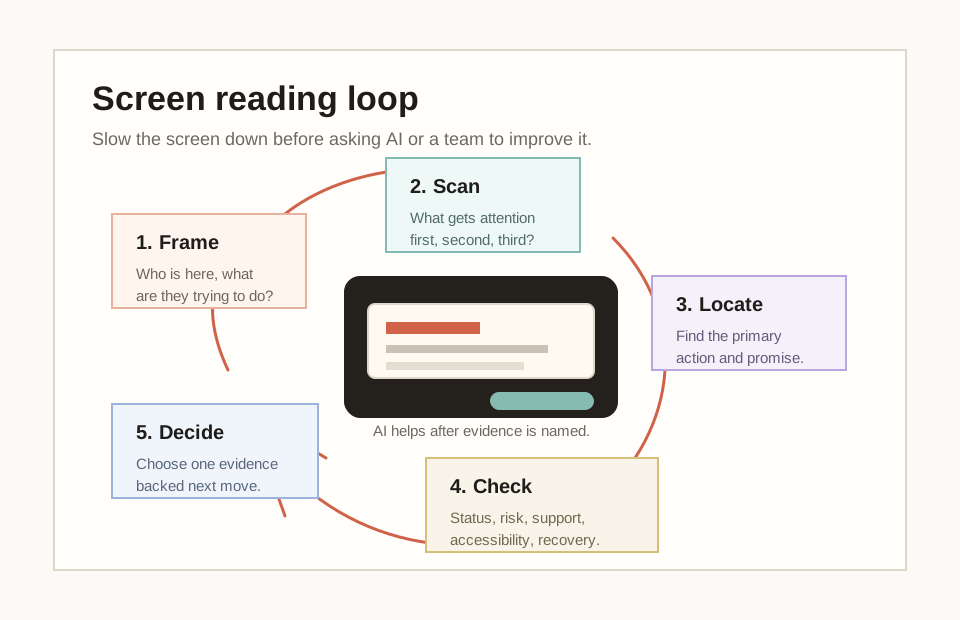
- 01FrameWho is here, and what are they trying to finish?Name the user moment before judging the screen. A screen is good or weak only in relation to what the user is trying to do.
- 02ScanWhat is noticed first, second, and third?Write what the screen makes most visible. This includes title, biggest content, strongest contrast, primary action, and anything repeated.
- 03LocateWhat is the screen asking the user to do?Find the action, supporting information, status, and possible friction before suggesting a fix.
- 04CheckWhat might break confidence?Look for visible feedback, hidden risk, accessibility concerns, and missing reassurance.
- 05DecideWhat should improve first?Use human evidence and AI critique to write one practical improvement with a product reason.
What makes a screen professional
Professional interface guidance gives us practical ways to inspect screens. Apple guidance points to readable content, adequate contrast, tappable controls, organization, and alignment. GOV.UK templates show how consistent page structure can help users understand where they are and what the service is for. Nielsen Norman Group heuristics help us ask whether the screen shows status, uses familiar language, and avoids making users remember too much.
Professional interface guidance gives us practical ways to inspect screens. Apple guidance points to readable content, adequate contrast, tappable controls, organization, and alignment. GOV.UK templates show how consistent page structure can help users understand where they are and what the service is for. Nielsen Norman Group heuristics help us ask whether the screen shows status, uses familiar language, and avoids making users remember too much.
Accessibility guidance adds a non-negotiable layer. A screen should be perceivable, operable, understandable, and robust. For a beginner, that can start with plain questions: can people read it, tap it, understand it, and recover if something goes wrong?
The learner does not need to memorize all the standards. She needs to learn that screen quality is not personal taste. It can be inspected with repeatable questions. This also prepares her for AI tools: a generated screen must pass the same screen-quality checks as a human-made screen.
- A screen should orient the user: where am I, and what is this for?
- A screen should prioritize attention: what matters first, second, and third?
- A screen should offer action: what can I do next?
- A screen should provide feedback: what happened, what is happening, or what will happen next?
- A screen should reduce avoidable risk: what could confuse, worry, or block the user?
Vocabulary for reading screens
Session 2 adds vocabulary for screens. These words let the learner say more than "this page is confusing." They help her explain which part of the screen is doing the work and which part is creating friction.
Session 2 adds vocabulary for screens. These words let the learner say more than "this page is confusing." They help her explain which part of the screen is doing the work and which part is creating friction.
The most important new phrase is screen job. If the screen job is unclear, every other decision becomes harder. A screen cannot have good hierarchy if nobody knows what task it is supporting.
Screen job
The reason this screen exists in the user journey.
Example: A checkout payment screen helps the user confirm details and pay.
Hierarchy
The order in which the screen asks for attention.
Example: The page title is first, the delivery total is second, and the Pay now button is third.
Primary action
The main thing the user can do next.
Example: Start now, Continue, Pay now, Save changes, Send message.
Supporting information
Information that helps the user decide safely.
Example: Total cost, delivery time, eligibility, file size limit, warning, or next step.
Status
A signal about what is happening, what happened, or what state the system is in.
Example: Loading, saved, failed, empty, disabled, selected, completed.
Screen friction
A detail that makes the task harder, slower, less clear, or less trustworthy.
Example: A hidden fee, vague button, missing error message, crowded layout, or tiny tap target.
Screen anatomy
A useful screen reading starts by separating parts of the screen. The learner should not try to judge the whole thing at once. First she should find orientation, decision content, controls, feedback, and support.
A useful screen reading starts by separating parts of the screen. The learner should not try to judge the whole thing at once. First she should find orientation, decision content, controls, feedback, and support.
Orientation answers "where am I?" Decision content answers "what do I need to know?" Controls answer "what can I do?" Feedback answers "what happened?" Support answers "is it safe or sensible to continue?"
This anatomy is not a rigid wireframe. Some screens are dashboards, some are forms, some are content pages, some are modals, some are empty states. The same questions still help. The learner can also use this anatomy as a prompt checklist when asking AI for critique.
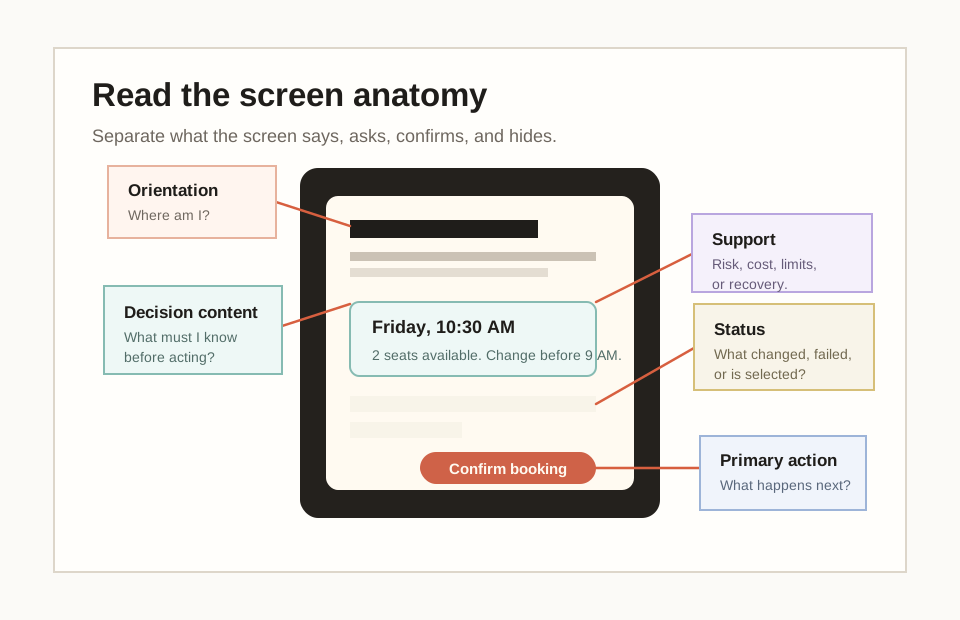
- Orientation: title, location, navigation, progress, or service name.
- Decision content: the information the user needs before acting.
- Controls: buttons, links, fields, menus, choices, toggles, and inputs.
- Feedback and status: loading, saved, success, error, empty, disabled, selected.
- Support and reassurance: cost, delivery, eligibility, safety, consequence, recovery.
User, task, and context inside a screen
A screen does not exist in isolation. The same screen may feel clear or unclear depending on the user moment. A new user may need orientation. A returning user may need speed. A worried user may need reassurance. A rushed user may need fewer decisions.
A screen does not exist in isolation. The same screen may feel clear or unclear depending on the user moment. A new user may need orientation. A returning user may need speed. A worried user may need reassurance. A rushed user may need fewer decisions.
This is why the later user, task, context, and outcome lesson will add deeper product framing. Session 2 prepares for that by asking: what situation is the user in when this screen appears?
Hierarchy and scanning
Hierarchy is the order of attention. It is one of the first design-specialist skills because it turns visual layout into user clarity. The learner should ask: what do I notice first, second, and third? Is that the same order the user needs?
Hierarchy is the order of attention. It is one of the first design-specialist skills because it turns visual layout into user clarity. The learner should ask: what do I notice first, second, and third? Is that the same order the user needs?
People often scan screens rather than reading every word carefully. This makes hierarchy especially important. Titles, headings, button labels, form labels, grouping, spacing, and contrast should help users find the next useful thing.
A common beginner mistake is making everything important. If every element is visually loud, the user has to do the prioritization work. Good hierarchy does some of that work for them. AI-generated screens often fail here because they can look polished while giving equal weight to everything.
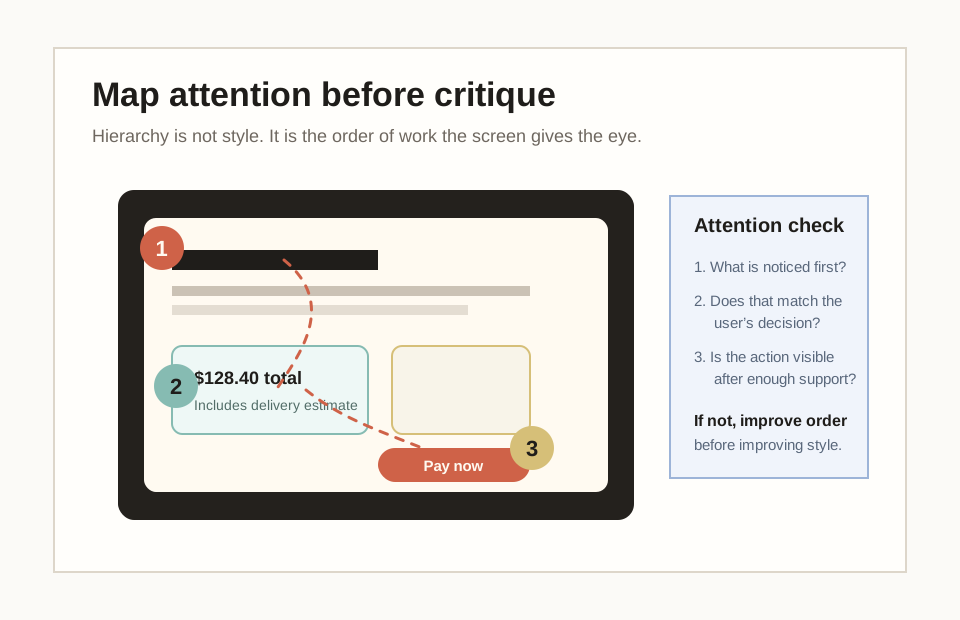
- Look for the largest text or strongest visual element.
- Look for the strongest action button or input.
- Look for the first piece of information that helps the user decide.
- Look for what is visually loud but not important.
- Look for what is important but visually buried.
Action, support, feedback, and status
The primary action is the main next step. It is a promise. A button labelled "Pay now" promises payment. A button labelled "Save changes" promises that the changes will be stored. A vague label such as "Submit" often forces the user to guess what will happen.
The primary action is the main next step. It is a promise. A button labelled "Pay now" promises payment. A button labelled "Save changes" promises that the changes will be stored. A vague label such as "Submit" often forces the user to guess what will happen.
Status and feedback protect confidence. If the user clicks and nothing visible happens, they may click again, leave, or worry. Loading, success, error, empty, disabled, selected, and saved states all help the user understand the system.
Support is the information that makes the action safe. A product owner should ask what the user needs before acting: cost, consequence, eligibility, privacy, recovery, or next step. This session introduces states lightly. The actions lesson will go deeper into buttons, states, errors, and recovery.
- What is the primary action?
- Does the label say what will happen?
- Is the action placed after enough information to decide?
- Is there a clear way to go back, cancel, edit, or recover if needed?
- Does the screen show status after the action?
- Useful support: cost, delivery time, eligibility, availability, limits, requirements, privacy, next step.
- Weak support: repeated labels, vague marketing copy, decorative explanation, hidden conditions.
- Missing support: the user cannot tell whether the action is final, paid, reversible, safe, or editable.
Trust and risk
Trust is built from small screen details. In checkout, trust may depend on total cost, delivery timing, return policy, payment security, and whether the user can edit mistakes. In a government service, trust may depend on eligibility, document requirements, privacy, and whether the user can save progress.
Trust is built from small screen details. In checkout, trust may depend on total cost, delivery timing, return policy, payment security, and whether the user can edit mistakes. In a government service, trust may depend on eligibility, document requirements, privacy, and whether the user can save progress.
Baymard checkout research is useful here because it shows the product impact of screen friction. If users meet hidden costs, too many fields, or confusing checkout steps, the design problem can become a business problem.
A product owner should learn to spot trust questions early. The practical question is: what does the user need to know before acting confidently?
Accessibility as screen quality
Accessibility belongs inside screen reading from the beginning. The learner does not need to master accessibility law in Session 2, but she should learn that screen quality must work for different bodies, contexts, devices, and abilities.
Accessibility belongs inside screen reading from the beginning. The learner does not need to master accessibility law in Session 2, but she should learn that screen quality must work for different bodies, contexts, devices, and abilities.
A screen with low-contrast text, tiny tap targets, color-only errors, missing labels, unclear focus order, or dense language may block people even if the visual style looks polished.
The beginner rule is simple: if users cannot perceive, operate, understand, or recover, the screen has a design problem.
- Perceivable: can users notice and read the content?
- Operable: can users reach and use controls by touch, keyboard, or assistive technology?
- Understandable: are words, order, feedback, and errors clear?
- Robust: will the screen still work across devices, browsers, zoom, and assistive tools?
- Not color alone: does the screen use labels, icons, position, or text as well as color?
AI tool bench and walkthrough
Lesson 2 must feel like a studio, not a reading assignment. The learner should touch real tools early, but the tool workflow stays narrow. First she captures or recreates one safe screen. Then she annotates it in FigJam or Figma. Then she asks AI for critique. Only after that should she try a small generated variant in a prompt-to-interface tool.
Lesson 2 must feel like a studio, not a reading assignment. The learner should touch real tools early, but the tool workflow stays narrow. First she captures or recreates one safe screen. Then she annotates it in FigJam or Figma. Then she asks AI for critique. Only after that should she try a small generated variant in a prompt-to-interface tool.
This order matters. If the learner starts by generating a new screen, she may confuse output speed with design skill. If she starts by reading the current screen, AI tools become accelerators for a clear design task.
Current tools change quickly, so the named tools are examples, not permanent dependencies. The transferable skill is tool judgment: what does this tool produce quickly, what does it miss, and what design fundamentals must I use to check it?
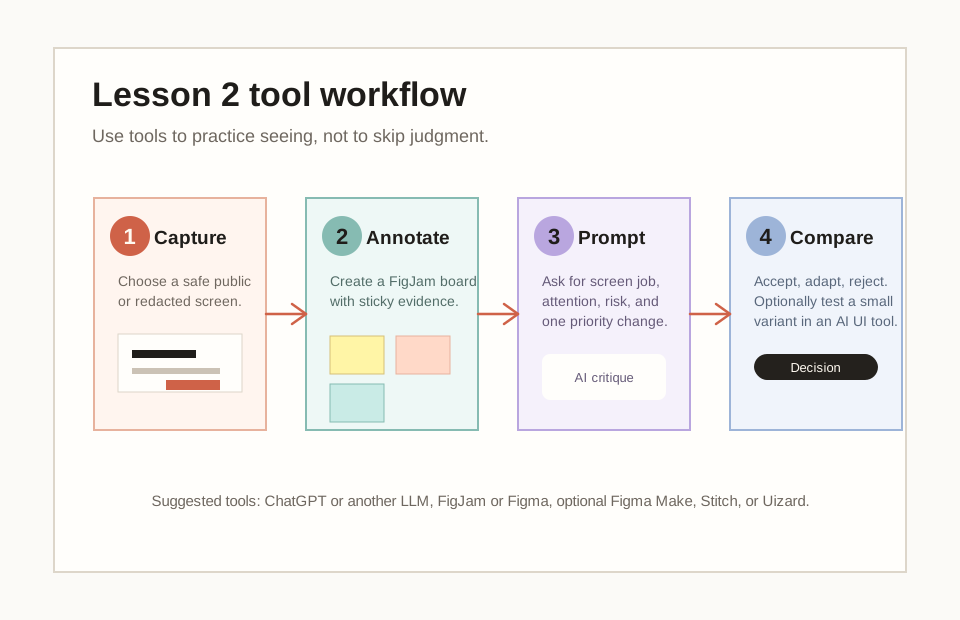
- 01Step 1Open the AI critique tool.Create or open a ChatGPT account, or use another LLM already available to the learner. The tool is used for critique, uncertainty, and rewriting, not final judgment.
- 02Step 2Create the annotation board.Create or open a Figma account and open FigJam. Start with a blank board, add the screen image or a simple recreated rectangle, then add sticky notes for screen job, attention order, action, support, status, friction, accessibility, and decision.
- 03Step 3Protect private information.Use a safe public screen or a redacted screenshot. Remove names, payment details, addresses, health details, private messages, and internal company data before using AI or cloud tools.
- 04Step 4Generate only after criteria are clear.Optionally open Figma Make, Google Stitch, or Uizard after the critique is written. Ask for one small variant, then compare it against the original screen-reading criteria.
- 05Step 5Save the learning artifact.Save the board link or screenshot, prompt, AI critique, optional variant, accept/adapt/reject notes, and final decision sentence.
- Expected output: one FigJam or Figma board with the screen, six to eight evidence notes, one AI critique section, and one final decision sentence.
- Use ChatGPT or another LLM for structured critique and clearer wording.
- Use FigJam or Figma for visual annotation and evidence organization.
- Use Figma Make, Stitch, Uizard, or a current equivalent only for one small variant after the screen criteria are written.
- Reject any tool output that invents user research, hides accessibility issues, changes the screen job, or treats polish as proof.
AI prompt lab library
AI can be useful in Session 2 because it can help the learner notice possible issues, improve wording, challenge assumptions, and turn observations into a board or small variant prompt. It can also produce generic critique if the prompt is vague. The learner should not ask "Is this good?" and accept the answer.
AI can be useful in Session 2 because it can help the learner notice possible issues, improve wording, challenge assumptions, and turn observations into a board or small variant prompt. It can also produce generic critique if the prompt is vague. The learner should not ask "Is this good?" and accept the answer.
A stronger prompt gives AI a screen description, product context, structured fields, visible evidence, and uncertainty requirements. This turns AI into a screen-reading assistant rather than a judge.
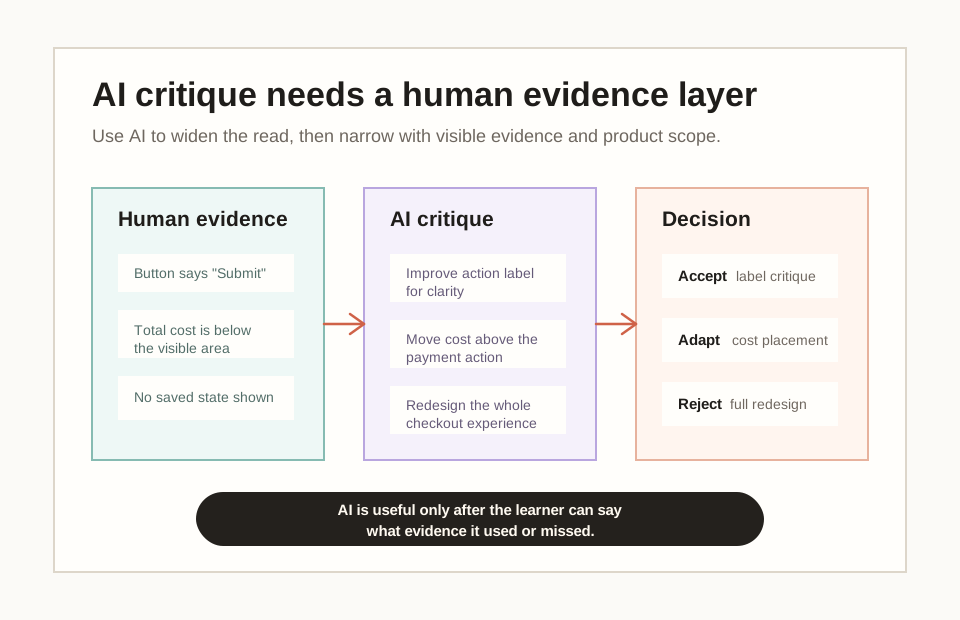
The learner should practice three responses to AI: accept, adapt, reject. Accept specific evidence-backed points. Adapt useful but broad suggestions. Reject claims that are unsupported, invented, outside scope, or not relevant to the user moment.
I am reading one product screen as an AI-native product/design learner.

Screen I am looking at:
[describe the screen, paste a safe screenshot description, or describe a redacted screenshot]

Product context I know:
[who the product is for, what the user is trying to do, and anything I know about business risk or constraints]

Please analyze it in simple English.
Return:
1. Screen job: what is this screen trying to help the user do?
2. User, task, context: who is using it, what are they trying to do, and what situation are they in?
3. Attention order: what do users probably notice first, second, and third?
4. Primary action: what is the main thing the user can do next?
5. Supporting information: what information helps the user decide?
6. Feedback or status: does the screen show where the user is, what happened, or what will happen next?
7. Friction or risk: what could confuse, slow, worry, or block the user?
8. Accessibility check: what might be hard to read, tap, understand, or operate?
9. Product decision: recommend one improvement first and explain why.
10. AI uncertainty: what are you unsure about because the screen or context is missing evidence?

Rules:
- Do not redesign the whole screen.
- Give two possible improvements, then recommend one.
- Use visible evidence from the screen.
- Separate visible evidence from assumptions.
- Tell me what you would accept, adapt, or reject if this were an AI-generated critique.
- Does the answer name a screen job?
- Does it refer to visible evidence?
- Does it identify attention order and primary action?
- Does it name uncertainty instead of pretending to know the user?
- Does it recommend one realistic improvement first?
- The answer redesigns the whole screen without reading it first.
- The answer invents user research, metrics, or business facts.
- The answer only talks about style.
- The answer ignores accessibility, status, or user risk.
I am practicing screen hierarchy.

Screen description:
[paste a safe screen description]

Return:
1. What the user probably notices first, second, and third.
2. The visible evidence for each attention claim.
3. Whether that attention order matches the user task.
4. One low-scope improvement to make the attention order more useful.

Rules:
- Do not redesign the whole screen.
- Do not comment on style unless it affects clarity, action, trust, or accessibility.
- Does the answer identify first, second, and third attention claims?
- Does it point to visible evidence for each claim?
- Does it ask whether the attention order matches the user task?
- AI comments on beauty without naming attention order.
- AI recommends a style change without visible evidence.
- AI ignores the user task and only describes layout.
Challenge my screen critique like a senior product designer.

My critique:
[paste critique]

Return:
1. Which statements are visible evidence.
2. Which statements are interpretations.
3. Which statements are assumptions that need research, analytics, or product context.
4. One stronger version of my critique that is more precise and less overconfident.
5. One question I should ask before recommending a change.
- Does AI separate evidence, interpretation, and assumption?
- Does it make the critique more precise rather than more dramatic?
- Does it name a question that would improve confidence before changing the screen?
- AI treats assumptions as facts.
- AI invents analytics, research, or user behavior.
- AI turns a focused critique into a full redesign.
Act as a product/design tutor.

My draft screen decision:
[paste sentence]

Rewrite it as one product-ready decision sentence.
It must include:
- what I would improve first
- which user task or risk it affects
- the visible evidence from the screen
- the product benefit
- why I am not redesigning everything yet
- Does the sentence name the improvement, user task or risk, visible evidence, product benefit, and scope limit?
- Could a founder, designer, or engineer understand the next move?
- Is it one decision rather than a bundle of unrelated fixes?
- The sentence becomes generic product language.
- The recommendation is too large for one screen pass.
- The product benefit disappears.
Turn this screen reading into a FigJam annotation board.

Screen reading:
[paste my notes]

Return:
1. Board title.
2. Six sticky-note headings.
3. Exact text for each sticky note.
4. One "AI critique" section with accept, adapt, reject columns.
5. One final product decision sentence.

Keep the board simple enough for a beginner to recreate in 15 minutes.
- Can the learner recreate the board in 15 minutes?
- Does the board separate human evidence from AI critique?
- Does the final note preserve one product decision?
- The board becomes a complex workshop template.
- AI creates too many sections for Session 2.
- The tool output hides the visible screen evidence.
I want to explore a small AI-generated screen variant after reading the current screen.

Current screen job:
[paste screen job]

User task:
[paste user task]

Visible friction:
[paste friction]

Constraints:
[paste product, brand, accessibility, or technical constraints]

Create a prompt I can use in Figma Make, Stitch, Uizard, or another AI UI tool.
The prompt should ask for:
1. One small variant, not a full redesign.
2. Preserved screen job and primary action.
3. Clear attention order.
4. Accessible labels, readable text, and visible status.
5. A short explanation of what changed and why.
- Does the prompt ask for one small variant rather than a full redesign?
- Does it preserve the screen job and primary action?
- Does it require accessibility, status, and explanation of changes?
- The prompt asks the tool to decide the product strategy.
- The variant changes the screen job without reason.
- The output looks polished but removes useful support or feedback.
Model boards and quality examples
A strong screen-reading answer names the screen job, attention order, primary action, supporting information, status, friction, accessibility concern, AI curation, and first decision. It does not need advanced design language. It needs visible evidence and a practical recommendation.
A strong screen-reading answer names the screen job, attention order, primary action, supporting information, status, friction, accessibility concern, AI curation, and first decision. It does not need advanced design language. It needs visible evidence and a practical recommendation.
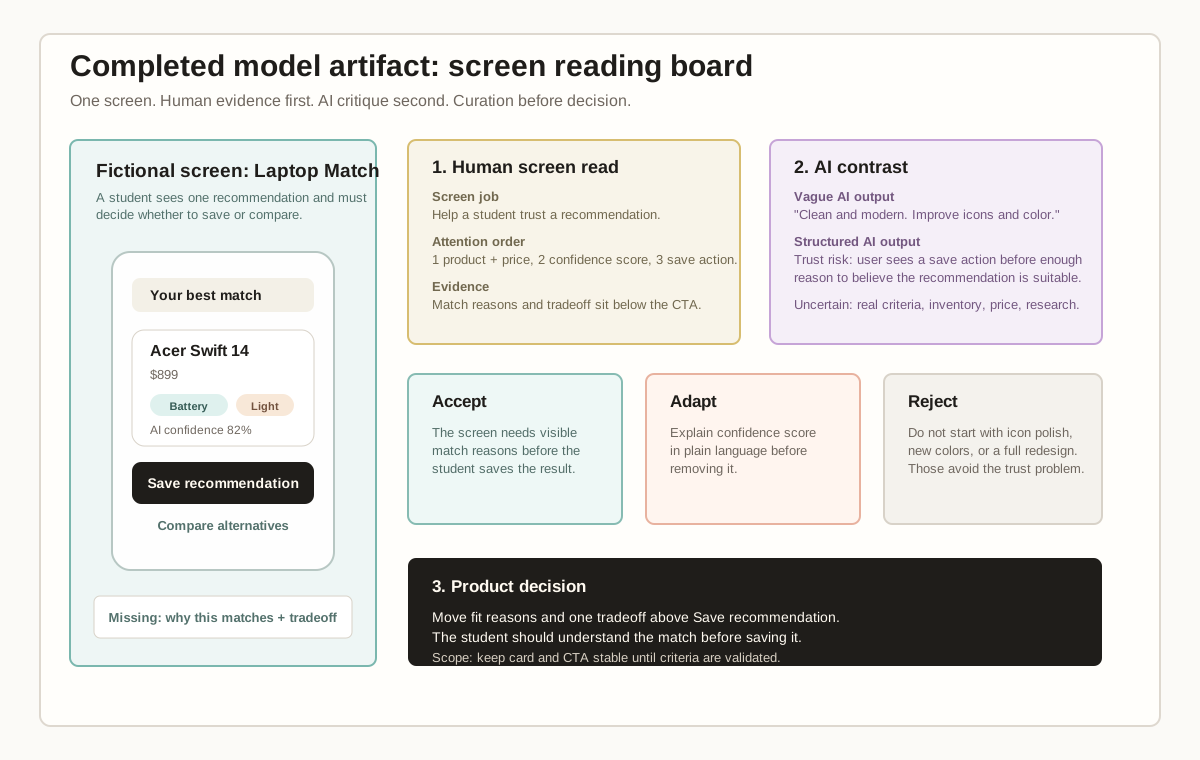
The deep model artifact uses a fictional laptop recommendation screen to show the full reasoning trail: human read, vague AI output, structured AI output, accept/adapt/reject notes, and final product decision. This prevents the lesson from feeling like a checklist and gives the learner a concrete artifact standard to imitate.
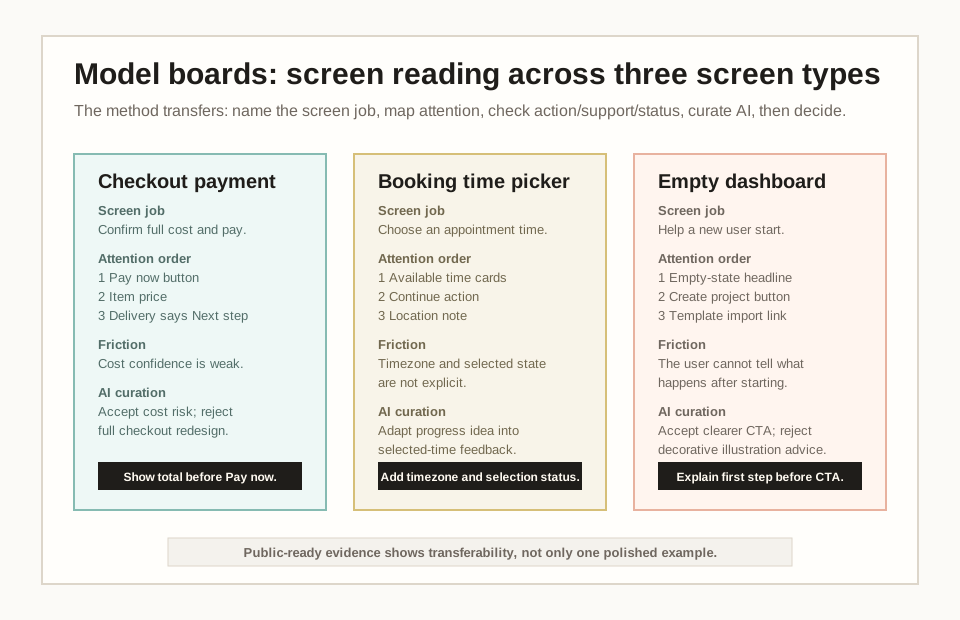
The upgraded transfer set then uses three screen types so the learner can see that the method travels. Checkout tests trust before commitment. Booking tests selected state and time confidence. Empty state tests first-use orientation and action clarity.
The full sample artifact and public handout are stored in docs/accelerator/assets/session-02 so the benchmark can be used in teaching, public previews, or partner review.
Weak
This screen looks clean and modern. AI said it is intuitive, so I would make the colors better and simplify it.
Evidence: The answer uses clean, modern, intuitive, and better colors without pointing to any specific screen element or user task.
Assessment: This is weak because it does not name the screen job, user moment, attention order, primary action, visible evidence, or product risk. It also accepts AI confidence without checking what evidence AI used.
Better
This checkout screen helps a shopper pay. The Pay now button is clear, but delivery cost is not visible. I would show the cost earlier because the user needs confidence before paying.
Evidence: The answer points to delivery cost and user confidence, so the critique is grounded in a visible support gap.
Assessment: This is better because it names a screen job, a primary action, one friction point, and a product reason. It is still incomplete because it does not map attention order, check status or accessibility, or show what AI advice was accepted or rejected.
Strong
The checkout screen is trying to help a shopper confirm cost and pay. Attention goes first to Pay now, then item price, while delivery says "Next step", so the action appears before full cost confidence. I would show estimated delivery and total before Pay now if the system can calculate them; if not, I would change the action label so the screen does not imply immediate payment.
Evidence: The answer ties Pay now, item price, and delivery Next step to a clear confidence risk and a conditional product decision.
Assessment: This is strong because it names screen job, user task, attention order, primary action, support gap, visible evidence, uncertainty, scoped decision, and tradeoff. A product team could use this as the start of a review conversation.
- 01Human screen readRead the current screen before generating a new one.The learner names screen job, user, task, context, attention order, action, support, status, friction, accessibility concern, and evidence before prompting.
- 02Vague AI outputSave vague critique as a contrast.The vague prompt usually produces clean, modern, intuitive, spacing, and color comments with little evidence.
- 03Structured AI outputUse AI as a screen-reading assistant.The structured prompt asks for screen job, attention order, action, support, status, friction, accessibility, product decision, and uncertainty.
- 04Accept/adapt/rejectCurate AI before deciding.Accept evidence-backed points, adapt useful but broad ideas, and reject unsupported claims, full redesigns, or polish-first advice.
- 05Final decisionFinish with a product-ready screen decision.Write one decision that names the improvement, visible evidence, product benefit, and reason the scope stays narrow.
Studio exercise and rubric
The studio output for Session 2 is now an AI-native screen noticing board and product decision sheet. The artifact should be practical enough to use in a real product review. The learner chooses one screen, maps the user moment, reads the screen anatomy, compares AI critique, optionally tests one generated variant, and writes one product decision.
The studio output for Session 2 is now an AI-native screen noticing board and product decision sheet. The artifact should be practical enough to use in a real product review. The learner chooses one screen, maps the user moment, reads the screen anatomy, compares AI critique, optionally tests one generated variant, and writes one product decision.
The tutor should keep the scope narrow. One screen is enough. The learner should not redesign a full app or produce a polished wireframe. The goal is screen literacy, product judgment, and tool discipline.
For public-ready work, the learner should also compare the chosen screen with at least one other screen type from the model board set. This prevents the artifact from becoming a memorized checkout answer and shows that the learner can transfer the method.
- 01Part ASelect one screenChoose one safe app or web screen. Avoid private banking, health, identity, or payment details unless personal data is hidden.
- 02Part BBuild the annotation boardPaste or recreate the screen in FigJam or Figma. Add sticky notes for screen job, user, task, context, attention order, primary action, support, status, friction, and accessibility concern.
- 03Part CCompare AI critiqueRun the vague prompt and the structured prompt. Mark one AI point to accept, one to adapt, and one to reject.
- 04Part DTest one generated variantOptional: use the AI UI variant prompt in Figma Make, Stitch, Uizard, or a current equivalent. Generate one small variant and critique it against the original screen reading.
- 05Part EMake the product decisionWrite one decision sentence: I would improve ___ first because the evidence is ___ and the product benefit is ___.
- Names the screen job in one sentence.
- Identifies user, task, and context without over-inventing.
- Marks attention order: first, second, third.
- Finds the primary action and explains its promise.
- Identifies supporting information and missing support.
- Checks feedback/status and one accessibility concern.
- Compares vague AI output with structured AI output.
- Uses AI critically: accept, adapt, reject.
- Keeps visible screen evidence separate from AI interpretation.
- Explains one transfer insight: how the same method applies to another screen type.
- Creates a simple visual annotation board in FigJam, Figma, or an equivalent canvas.
- If using a generator, compares the generated variant against the screen criteria.
- Finishes with one evidence-backed product decision that names product benefit and scope limit.
Home study and follow-up reading
For home study, the learner should choose two screens from everyday apps or websites. For each screen, she should create a small annotation board, write the screen job, user, task, context, attention order, primary action, supporting information, feedback/status, friction, accessibility concern, AI accept/adapt/reject notes, and one improvement decision.
For home study, the learner should choose two screens from everyday apps or websites. For each screen, she should create a small annotation board, write the screen job, user, task, context, attention order, primary action, supporting information, feedback/status, friction, accessibility concern, AI accept/adapt/reject notes, and one improvement decision.
The lecturer can use the readings below to expand examples, especially for screen structure, usability heuristics, accessibility, checkout friction, AI-assisted critique, FigJam annotation, and current prompt-to-interface tools.
Follow-up reading for the lecturer
Resources and submission
Keep the review materials close, but separate from the main path.
Use these blocks when preparing the final artifact or checking optional references after the guided tutorial.
Artifact, self-check, and base prompt
Choose one safe product screen, build a FigJam or Figma annotation board, run the vague and structured AI critique prompts, accept/adapt/reject AI feedback, optionally test one generated variant, then write one product decision sentence.
- Can the learner state the screen job in one sentence?
- Can the learner name user, task, and context without inventing too much?
- Can the learner identify what is noticed first, second, and third?
- Can the learner find the primary action and explain its promise?
- Can the learner identify supporting information, feedback/status, friction, and one accessibility concern?
- Can the learner build a simple visual annotation board in FigJam, Figma, or an equivalent canvas?
- Can the learner use AI critique critically, compare one optional generated variant, and finish with one evidence-backed product decision?
- Can the learner explain why a weak, better, and strong screen read differ in evidence quality?
- Can the learner transfer the screen-reading method across checkout, booking, empty state, form, search, or error screens?
I am reading one product screen as an AI-native product/design learner.

Screen I am looking at:
[describe the screen, paste a safe screenshot description, or describe a redacted screenshot]

Product context I know:
[who the product is for, what the user is trying to do, and anything I know about business risk or constraints]

Please analyze it in simple English.
Return:
1. Screen job: what is this screen trying to help the user do?
2. User, task, context: who is using it, what are they trying to do, and what situation are they in?
3. Attention order: what do users probably notice first, second, and third?
4. Primary action: what is the main thing the user can do next?
5. Supporting information: what information helps the user decide?
6. Feedback or status: does the screen show where the user is, what happened, or what will happen next?
7. Friction or risk: what could confuse, slow, worry, or block the user?
8. Accessibility check: what might be hard to read, tap, understand, or operate?
9. Product decision: recommend one improvement first and explain why.
10. AI uncertainty: what are you unsure about because the screen or context is missing evidence?

Rules:
- Do not redesign the whole screen.
- Give two possible improvements, then recommend one.
- Use visible evidence from the screen.
- Separate visible evidence from assumptions.
- Tell me what you would accept, adapt, or reject if this were an AI-generated critique.
References and web examples
References
A practical interface-design reference for screen-level checks: readable text, contrast, spacing, organization, alignment, and touch targets.
Nielsen Norman Group: 10 usability heuristicsA stable professional reference for reading screens through visibility, familiar language, recognition over recall, focused information, and error recovery.
GOV.UK Design System page templateA useful example of screen structure: page title, header, main content, constrained width, and consistent service layout.
GOV.UK Design System button componentA simple source for teaching the main action on a screen, including when a start button is appropriate for beginning a service journey.
U.S. Web Design System accessibility guidanceA strong accessibility anchor for screen reading: perceivable, operable, understandable, robust, plus reminders that teams must test their own services.
Baymard cart and checkout usability researchA product-owner bridge for why screen friction matters. Checkout screens show how information order, hidden costs, and form effort can affect completion.
OpenAI Help Center: Prompt engineering best practices for ChatGPTCurrent ChatGPT prompting guidance for clear, specific requests, useful context, and iterative refinement. Session 2 uses this to turn a vague screen opinion into a screen-reading brief.
Figma Learn: Guide to FigJamFigJam is the first practical tool surface for Session 2: learners can paste a screen, add sticky notes, group evidence, and run lightweight critique without needing polished design skills.
Figma MakeFigma Make shows the current prompt-to-interface direction: learners can start from a design or prompt and quickly make functional prototypes, which makes screen-reading criteria more valuable.
Google Labs: Stitch AI UI DesignA current 2026 tool-landscape signal from Google Labs: Stitch is positioned as an AI-native software design canvas for creating and iterating high-fidelity UI from natural language.
Uizard Screenshot ScannerUizard Screenshot Scanner is a practical example of a tool that can convert screenshots into editable mockups, useful for showing why learners must critique generated structure and not only admire speed.
Web examples
Use this to show that a screen has structure before it has decoration: title, main content, container width, header, footer, and service conventions.
GOV.UK Design SystemButton componentUse the start button as a concrete main-action example. It teaches how a screen can reduce hesitation by naming the next step plainly.
Apple DeveloperUI Design Dos and DontsUse Apple guidance to make screen quality visible: content should fit, targets should be tappable, text should be legible, contrast should support reading, and alignment should show relationships.
Baymard InstituteCart and checkout usability researchUse Baymard for the startup/product layer. Checkout screens make it obvious that screen friction is not just aesthetic: it can affect revenue, trust, and support load.
Nielsen Norman Group10 usability heuristics for user interface designUse only a starter subset in Session 2: visibility of status, familiar language, recognition over recall, focused information, and plain error recovery.
U.S. Web Design SystemAccessibility guidanceUse this to keep accessibility inside screen reading from the beginning. The learner should ask whether people can perceive, operate, understand, and continue using the interface.
Figma LearnGuide to FigJamUse FigJam as the first hands-on tool surface. Learners paste a safe screen, create sticky notes for screen job, attention order, action, status, friction, and accessibility, then compare AI critique with their own evidence.
FigmaFigma MakeUse Figma Make as a later-track preview. It shows that AI can create functional interface drafts quickly, so screen-reading criteria become the learner’s steering wheel.
Google LabsStitch AI UI DesignUse Stitch as a current AI-native design-canvas example. The teaching point is not to chase novelty, but to compare generated screens against user moment, attention order, action, trust, and accessibility.
UizardScreenshot ScannerUse Uizard Screenshot Scanner as a concrete screenshot-to-mockup workflow. Learners should practice redacting private data, importing a screen, and checking what the tool preserves, changes, or invents.