
Week 3 study notes
Visual Foundations: How Designers See Screens
Map layout, typography, color, composition, density, and accessibility as product-facing visual design fundamentals, critique one screen with AI support, and prepare for the dedicated craft studios that follow.
Lesson focus
Visual foundations are not decoration. Layout, typography, color, and composition shape what users notice, whether they can read, how they interpret state and trust, and how confidently they act. This lesson orients the eye before each craft pillar receives its own deep studio lesson.
Learning materials
Includes study notes, references, and practice examples.
Guided tutorial path
Work through the lesson by section. Each stop names the evidence to produce before the final readiness gate.
Lesson contents
Lecture spine
Session 3 exists because the course should not train product interaction judgment while skipping visual design fundamentals. A learner who wants to become a design specialist needs to see typography, color, layout, and composition early.
Session 3 exists because the course should not train product interaction judgment while skipping visual design fundamentals. A learner who wants to become a design specialist needs to see typography, color, layout, and composition early.
The lesson stays connected to product work. Visual design is not decoration. It changes what users notice, whether they can read, whether they trust the action, and whether the product feels clear enough to use.
This is also the first lesson where the learner learns to critique AI-generated visual polish. AI can produce a screen that looks finished, but the learner must decide whether the type, color, spacing, composition, and accessibility actually support the user task.
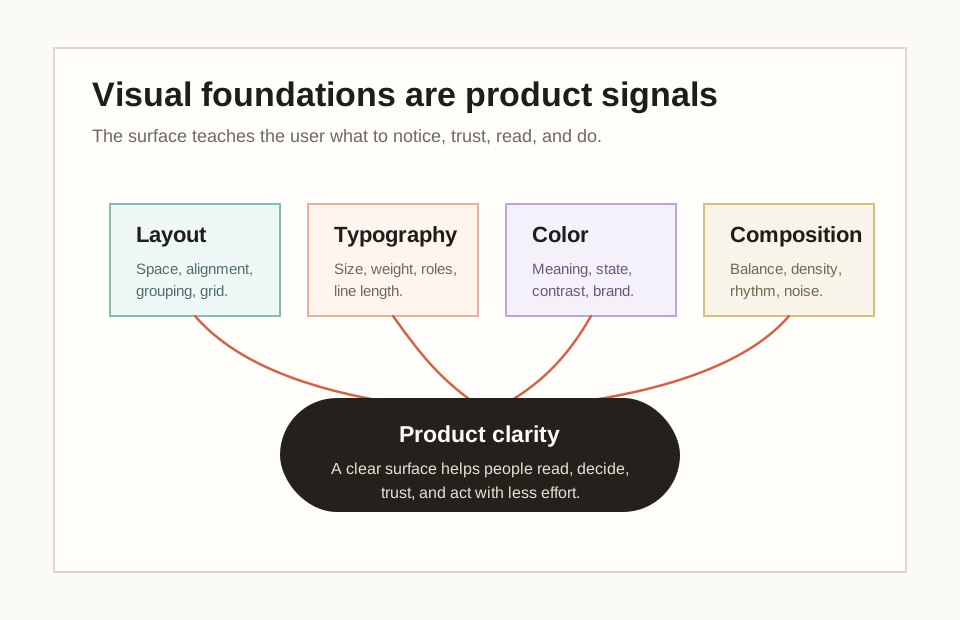
- Layout: spacing, alignment, grouping, grid, density, and responsive structure.
- Typography: type size, weight, line length, hierarchy, roles, and readability.
- Color: meaning, contrast, state, emphasis, brand, and accessibility.
- Composition: balance, rhythm, density, focal point, and visual noise.
- AI critique: generated screens should be checked against the same fundamentals.
Visual vocabulary
The learner should learn a small visual vocabulary before moving deeper into product framing. These terms allow her to explain why a screen feels confusing, crowded, polished, calm, trustworthy, or hard to read.
The learner should learn a small visual vocabulary before moving deeper into product framing. These terms allow her to explain why a screen feels confusing, crowded, polished, calm, trustworthy, or hard to read.
The important move is evidence. "The color is nice" is weak. "The low-contrast helper text is hard to read, so the user may miss the delivery condition before payment" is stronger.
This vocabulary protects the program from becoming a pure product-methodology course. A design specialist must be able to speak about the surface with enough precision that another designer, engineer, founder, or AI tool can respond.
Layout
The visible structure that organizes content and action.
Example: Cards align to a grid and related labels sit near the fields they explain.
Typography
The system that makes text readable, scannable, and appropriately weighted.
Example: A heading is larger and heavier than body copy, while labels stay compact and clear.
Color role
The use of color for role, meaning, contrast, state, emphasis, and brand.
Example: An error uses color plus text, not color alone.
Composition
The whole-screen arrangement of weight, balance, density, and rhythm.
Example: A checkout screen feels calm because cost, action, and reassurance are visually grouped.
Density
The amount of information and visual weight packed into a screen or section.
Example: A dashboard can be dense if grouping and hierarchy help experts scan quickly.
What makes visual design professional
Professional design systems treat visual craft as part of product quality. Apple and Material guidance both connect type, color, layout, and spacing to legibility, hierarchy, consistency, and accessibility.
Professional design systems treat visual craft as part of product quality. Apple and Material guidance both connect type, color, layout, and spacing to legibility, hierarchy, consistency, and accessibility.
The learner does not need to memorize every rule. She needs to see that visual design quality can be inspected. Type can be too small. Spacing can break relationships. Color can hide meaning. Density can exhaust the user or remove needed support.
This is the standard for the lesson: no vague taste critique. Every visual claim should point to something visible and explain why it matters to clarity, trust, action, or accessibility.
- User clarity: can the user tell what matters first?
- Reading comfort: can the user read without strain?
- Trust: does the visual system make important risk and state visible?
- Action: does the surface guide the next step?
- Accessibility: can different people perceive, operate, and understand the screen?
Layout: spacing, alignment, grouping, and grid
Layout begins before visual style. It starts with order and space. When related things sit together, the user understands relationships faster. When unrelated things have enough separation, the user does not have to guess where one idea ends and another begins.
Layout begins before visual style. It starts with order and space. When related things sit together, the user understands relationships faster. When unrelated things have enough separation, the user does not have to guess where one idea ends and another begins.
Alignment creates calm because it makes the screen feel intentional. A messy screen often feels messy because edges do not line up, spacing changes without reason, or sections do not share a structure.
A grid is not a prison. It is a helper. Figma layout guides and Material layout guidance both support the same beginner idea: structure makes screens easier to scan and easier to adapt across screen sizes.

- Do related elements sit closer together than unrelated elements?
- Do important edges line up?
- Is there a repeated spacing rhythm?
- Does the screen use a grid or stable structure?
- Where does the eye have to work too hard to rebuild relationships?
Typography: hierarchy, roles, and readability
Typography is not just choosing a font. It is the system that makes words readable and scannable. Product screens depend on words, so type quality affects product quality.
Typography is not just choosing a font. It is the system that makes words readable and scannable. Product screens depend on words, so type quality affects product quality.
A strong type system gives text roles. Headings orient the user. Body text explains. Labels identify inputs. Helper text reduces uncertainty. Action text tells what happens next. If all text looks similar, the user has to work harder to decide what matters.
The learner should start with hierarchy, role, and legibility before debating font personality. A screen with a trendy font can still fail if the type scale, weight, line length, or contrast makes the task harder.
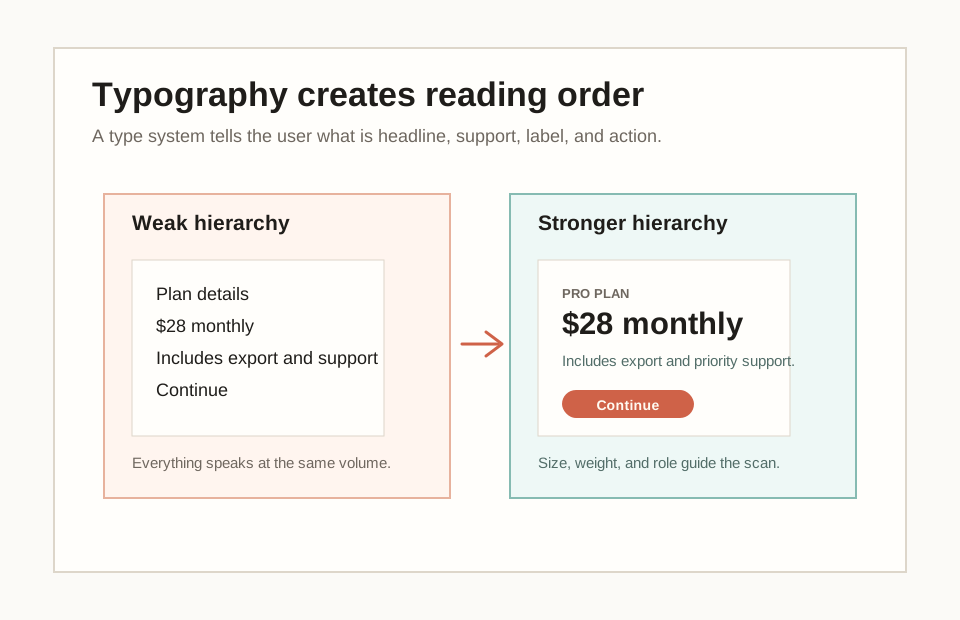
- What text is read first, second, and third?
- Does the biggest text match the most important user decision?
- Are headings, body copy, labels, helper text, and actions visually distinct?
- Is the line length comfortable?
- Is the action label readable and easy to find?
Color: roles, contrast, and accessibility
Color should have a job. It can show brand, action, selection, success, warning, error, surface, or emphasis. A beginner often starts with palette taste; a design specialist starts with color roles.
Color should have a job. It can show brand, action, selection, success, warning, error, surface, or emphasis. A beginner often starts with palette taste; a design specialist starts with color roles.
Contrast is one of the most important beginner checks because it affects whether users can perceive content. A low-contrast screen can look quiet but still block understanding. The learner should test important foreground and background pairs when color affects reading or status.
Color alone should not carry important meaning. If an error is shown only in red, some users may miss it. Strong UI uses color with text, icon, position, or label so meaning survives different bodies, devices, and contexts.
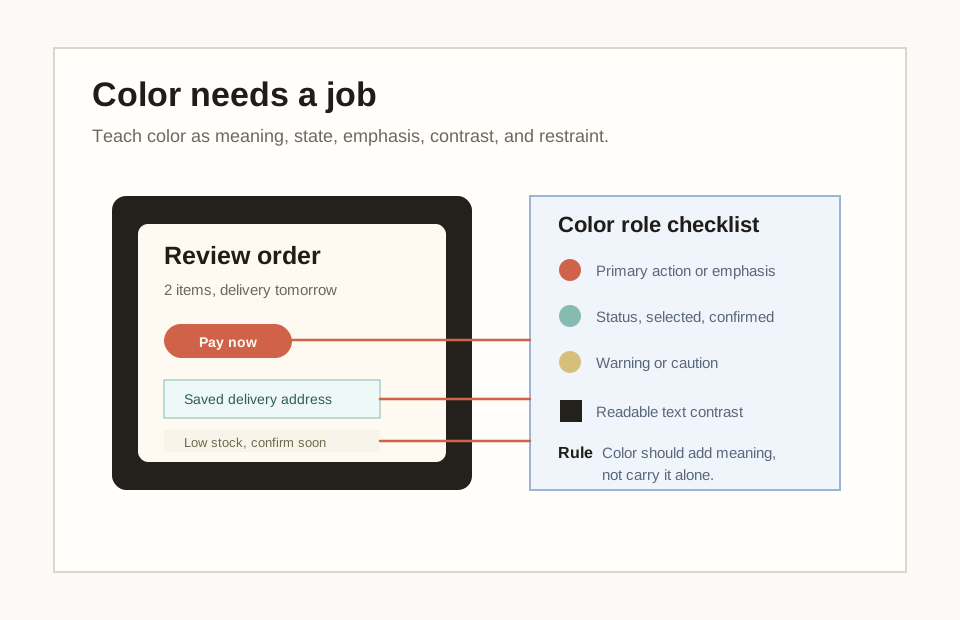
- What does the primary color mean?
- What color shows success, warning, error, selection, or active state?
- Is important text readable against its background?
- Does the screen use text, icon, or position as well as color?
- Is brand color helping the product moment or overpowering it?
Composition: balance, density, and visual noise
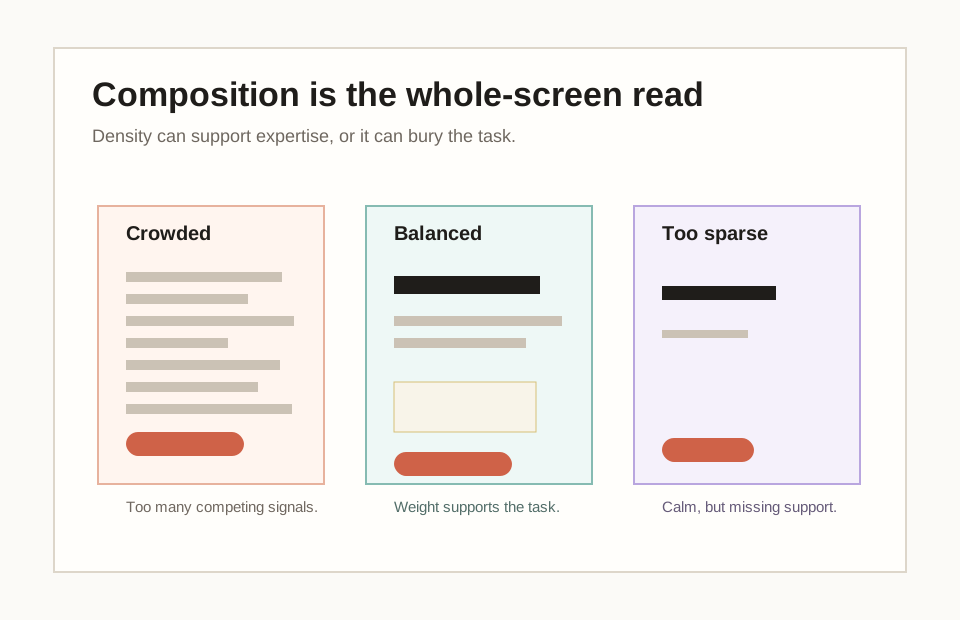
Composition is the whole-screen read. It is how the parts hold together. The learner should ask whether the screen feels crowded, balanced, empty, noisy, calm, heavy, or fragile, then explain the visible reason.
Composition is the whole-screen read. It is how the parts hold together. The learner should ask whether the screen feels crowded, balanced, empty, noisy, calm, heavy, or fragile, then explain the visible reason.
Density is not automatically bad. A professional tool may need dense information. A consumer checkout may need more space and reassurance. The design question is whether density supports the task or creates effort.
This prepares the learner for future layout and product decisions. A screen can be too crowded, but it can also be too empty. Empty space is useful when it creates focus; it is harmful when it removes support the user needs before acting.
Accessibility as visual craft
Accessibility belongs inside visual foundations. It is not a separate technical topic that appears later. If a user cannot perceive text, distinguish state, find focus, or understand the visual order, the screen has a visual design problem.
Accessibility belongs inside visual foundations. It is not a separate technical topic that appears later. If a user cannot perceive text, distinguish state, find focus, or understand the visual order, the screen has a visual design problem.
For this lesson, the learner should start with practical checks: contrast, text size, tap target spacing, color-only meaning, visible focus, and whether the most important thing is still clear when the screen is smaller.
This is why tools such as WebAIM Contrast Checker and Adobe Color Contrast Checker belong in a beginner lesson. They help the learner test what her eyes may miss.
- Perceivable: text, icons, status, and controls can be seen and distinguished.
- Operable: controls have enough size, spacing, and visible focus.
- Understandable: visual order supports the words and the task.
- Not color alone: errors, warnings, and success states use text, icons, or position as well.
- Test where it matters: contrast, zoom, small screens, and state changes.
AI-generated UI and the polish trap
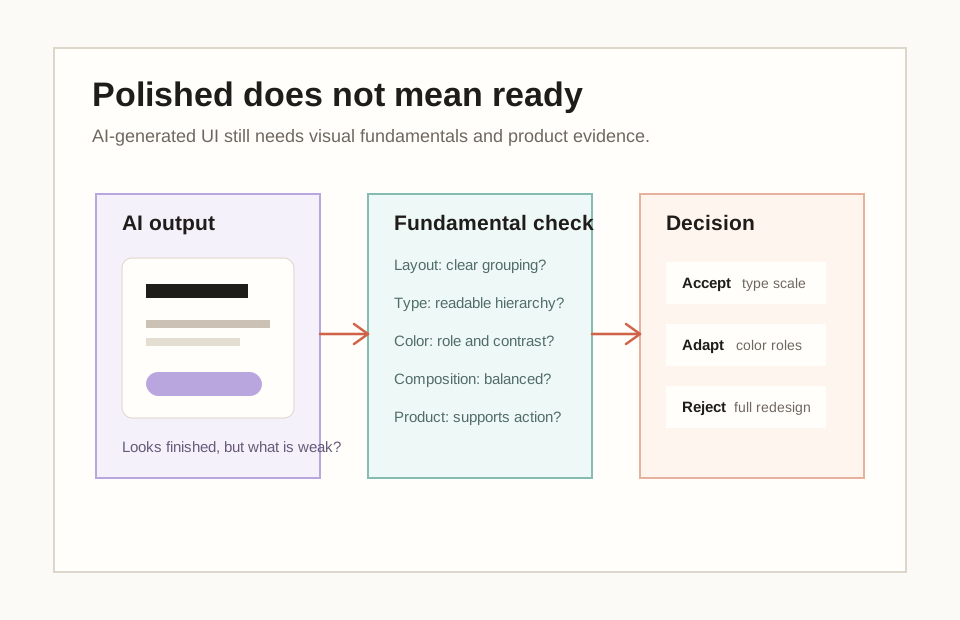
AI changes the visual design learning problem. A learner may see a generated screen that looks far beyond her current manual skill level. That can create false trust. The screen may look finished but still fail hierarchy, contrast, state clarity, density, or accessibility.
AI changes the visual design learning problem. A learner may see a generated screen that looks far beyond her current manual skill level. That can create false trust. The screen may look finished but still fail hierarchy, contrast, state clarity, density, or accessibility.
The learner should use visual foundations as the critique layer. Instead of asking whether a screen is attractive, she asks: does layout show relationships, does type create reading order, does color carry meaning safely, does composition support the task, and can users perceive and operate it?
This is the core AI-native habit for Session 3: prompt for visual critique, check the critique with fundamentals, then accept, adapt, or reject before making a decision.
Tool walkthrough
The tool workflow is intentionally simple. This is not a full Figma craft class. The learner is building visual judgment first. The board is the artifact.
The tool workflow is intentionally simple. This is not a full Figma craft class. The learner is building visual judgment first. The board is the artifact.
The expected output is one visual foundations board with the screen, evidence notes, contrast check, AI critique, accept/adapt/reject notes, and one visual-design decision sentence.
The rule is: annotate first, prompt second, check third, generate fourth. If the learner generates first, she may confuse polish with progress.
- 01Step 1Create the canvas.Create or sign into a Figma account, open FigJam or Figma Design, and create a board called Visual Foundations Review.
- 02Step 2Add the visual sample.Paste a safe screenshot, recreate a simple screen block, or paste an AI-generated UI image with private data removed.
- 03Step 3Annotate the surface.Add sticky notes for layout, typography, color, composition, accessibility, AI critique, and final decision.
- 04Step 4Check contrast where it matters.Open WebAIM Contrast Checker or Adobe Color Contrast Analyzer in the browser. Test at least one text/background pair that affects reading, action, warning, or status.
- 05Step 5Generate only after criteria.Optionally use Figma Make, Canva Magic Studio, or a current AI UI tool to create one small variant after criteria are written.
- 06Step 6Save the learning artifact.Save the board link or screenshot, paste the AI prompt and output, and write the final visual-design decision sentence.
AI prompt lab library
The prompt library is the AI-native core of this lesson. It teaches the learner to ask for visual critique in a structured way, then check the answer using fundamentals.
The prompt library is the AI-native core of this lesson. It teaches the learner to ask for visual critique in a structured way, then check the answer using fundamentals.
The learner should compare a vague prompt with a structured prompt. This helps her feel the difference between taste language and design evidence.
Prompting is not the final skill. The final skill is judgment: accepting, adapting, rejecting, and writing one visual-design decision that a product team could understand.
I am learning visual design fundamentals for product screens.

Screen or design sample:
[describe the screen, paste a safe screenshot description, or describe an AI-generated UI]

Please critique it in simple English.
Return:
1. Layout: how spacing, alignment, grouping, and grid help or hurt clarity.
2. Typography: whether size, weight, line length, and hierarchy support reading.
3. Color: what roles the colors play, including meaning, state, contrast, and trust.
4. Composition: whether the screen feels balanced, crowded, sparse, or visually noisy.
5. Accessibility: what might be hard to read, distinguish, tap, or understand.
6. AI-output risk: if this were generated by AI, what looks polished but weak?
7. First improvement: recommend one visual-design improvement and explain the product reason.

Rules:
- Do not redesign the whole screen.
- Separate visual evidence from taste.
- Do not say "modern", "clean", or "beautiful" without explaining why it helps the user.
- Name what you are uncertain about.
- Does the answer critique layout, typography, color, composition, and accessibility?
- Does it separate visual evidence from taste?
- Does it avoid vague words such as modern, clean, and beautiful unless they are explained?
- Does it recommend one improvement with a product reason?
- AI only comments on style and mood.
- AI invents brand strategy or user research.
- AI recommends a full redesign before identifying visual evidence.
- AI ignores contrast, readability, or accessibility.
I am practicing typography critique for product UI.

Screen description:
[paste a safe screen description]

Return:
1. What text is likely read first, second, and third.
2. Whether size, weight, and spacing match importance.
3. Whether body text, labels, and actions are comfortable to read.
4. One typography improvement that would make the task clearer.

Rules:
- Do not recommend a new font unless the current font blocks readability.
- Focus on hierarchy, legibility, line length, role, and product clarity.
- Does the answer name first, second, and third reading order?
- Does it critique size, weight, line length, role, and legibility?
- Does it recommend a typography improvement without turning into font shopping?
- AI recommends a new font without evidence.
- AI ignores line length, hierarchy, or reading comfort.
- AI treats brand personality as more important than task clarity.
I am practicing color critique for product UI.

Screen description:
[paste a safe screen description]

Return:
1. The role of each important color: action, status, warning, selection, surface, brand, or decoration.
2. Any contrast or accessibility risk.
3. Any place where color is carrying meaning alone.
4. One color-system improvement that improves clarity or trust.

Rules:
- Do not make a palette just because it looks nicer.
- Explain the user or product reason for the change.
- Does the answer identify color roles?
- Does it name contrast or color-only meaning risks?
- Does it recommend a color-system improvement with a product reason?
- AI creates a palette because it looks nicer.
- AI ignores contrast and accessibility.
- AI changes brand color without reason.
Challenge my visual critique like a senior product designer.

My critique:
[paste critique]

Return:
1. Which claims are visible evidence.
2. Which claims are taste or preference.
3. Which claims need user research, brand context, or accessibility testing.
4. One stronger version of my critique.
5. One question I should ask before changing the design.
- Does AI separate visual evidence, taste, and assumptions?
- Does it make the critique more precise?
- Does it name what needs user research, brand context, or accessibility testing?
- AI treats taste as evidence.
- AI invents user preference or brand rules.
- AI becomes more dramatic instead of more precise.
Turn this visual critique into a simple FigJam board.

Visual critique:
[paste notes]

Return:
1. Board title.
2. Six sticky-note headings.
3. Exact text for each sticky note.
4. One section for AI critique with accept, adapt, reject columns.
5. One final visual-design decision sentence.

Keep the board simple enough for a beginner to recreate in 15 minutes.
- Can the learner recreate the board in 15 minutes?
- Does the board separate visual evidence from AI critique?
- Does the final note preserve one scoped visual decision?
- The board becomes too complex for a beginner.
- AI creates a full design-system workshop.
- The board hides the original visual evidence.
I want to use an AI UI tool to create one small visual variant.

Current screen job:
[paste screen job]

Visual issue:
[paste one issue about layout, typography, color, or composition]

Constraints:
[paste brand, accessibility, content, or product constraints]

Write a prompt for Figma Make, Canva Magic Studio, or another AI design tool.
The prompt must ask for:
1. One small visual variant, not a full redesign.
2. Preserved screen job and primary action.
3. Clearer layout, typography, color roles, or composition.
4. Accessible contrast and readable text.
5. A short explanation of what changed and why.
- Does the prompt request one small variant, not a full redesign?
- Does it preserve screen job and primary action?
- Does it require accessible contrast and readable text?
- The prompt asks the tool to create a new product direction.
- The output prioritizes style over task clarity.
- The variant removes useful information or lowers contrast.
Model board and quality examples
A strong Session 3 answer connects visual evidence to product reason. It does not need advanced art-school vocabulary. It needs clarity, specificity, and judgment.
A strong Session 3 answer connects visual evidence to product reason. It does not need advanced art-school vocabulary. It needs clarity, specificity, and judgment.
A weak answer often uses taste language: premium, clean, modern, nice, boring, ugly, or weird. Those words may point toward a feeling, but they are not enough for a product team to act.
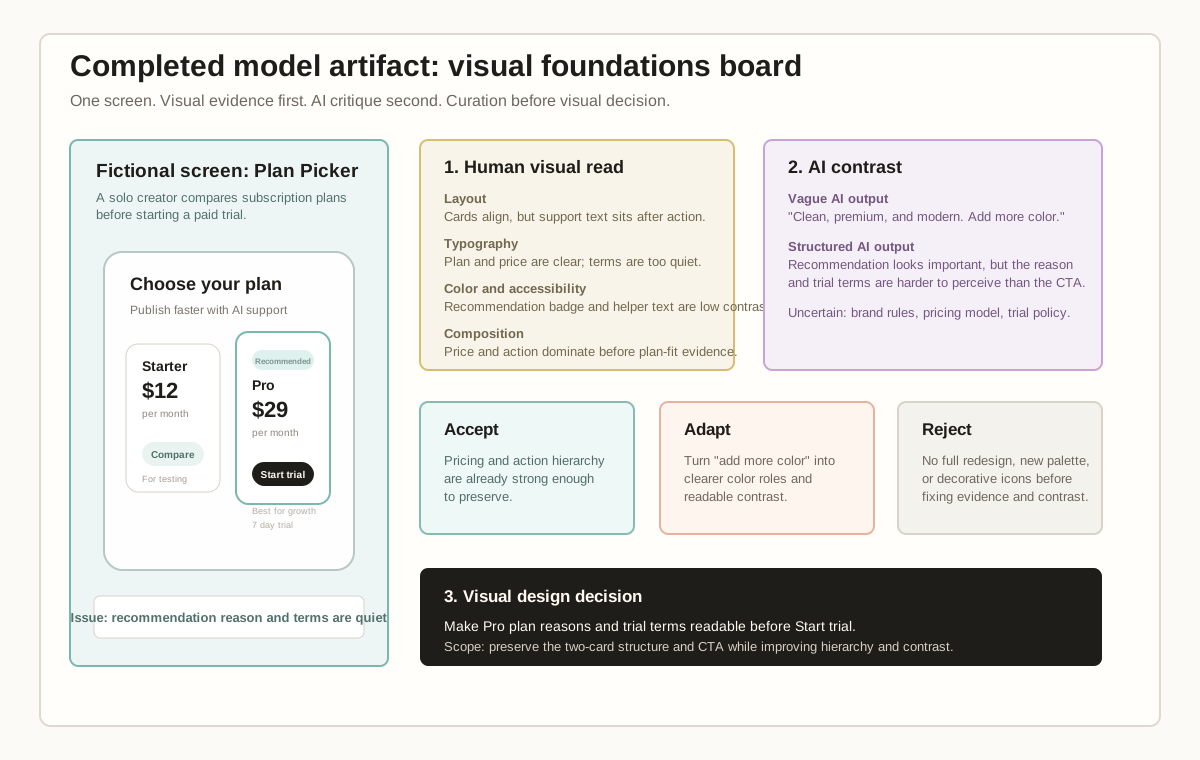
The completed model artifact uses a fictional subscription plan screen to show the full reasoning trail: human visual read, vague AI output, structured AI output, accept/adapt/reject notes, and final visual-design decision.
The full sample artifact and public handout are stored in docs/accelerator/assets/session-03 so the benchmark can be used in teaching, public previews, or partner review.
Weak
This pricing screen looks clean and premium. AI said it is modern, so I would add nicer colors and icons.
Evidence: The answer uses clean, premium, modern, nicer, and icons without pointing to what the user is trying to read, compare, trust, or do.
Assessment: This is weak because it stays at taste level, accepts AI as the judge, and does not name layout, typography, color, composition, accessibility, visual evidence, or product reason.
Better
The Pro plan is visually stronger than Starter because it has a border and dark Start trial button. The recommendation badge is small, so I would make it more visible.
Evidence: The answer points to the Pro border, button, and badge, so it is moving from taste toward visual evidence.
Assessment: This is better because it names visible elements and a hierarchy issue. It is still incomplete because it does not explain the user task, check contrast or trial terms, show AI curation, or explain why the badge matters before the user starts a trial.
Strong
The screen helps a solo creator choose a plan before starting a trial. Pro is visually emphasized by the border, price, and Start trial action, but the recommendation reason and trial terms are low-contrast and easy to miss. I would make those support details readable before the action because the user needs to understand why Pro fits and what commitment they are making. I would keep the two-card layout stable because the first issue is visual hierarchy and trust, not a full pricing redesign.
Evidence: The answer ties Pro emphasis, low-contrast support text, recommendation reason, trial terms, and Start trial to a clear trust and decision-support problem.
Assessment: This is strong because it names screen job, user moment, layout, typography, color, contrast, composition, accessibility risk, scoped decision, and tradeoff. A product or design team could discuss and test the change immediately.
- 01Human visual readRead the surface before asking AI.The learner first names screen job, layout, typography, color, composition, accessibility concern, visible evidence, and assumption before prompting.
- 02Vague AI outputSave vague critique as a contrast.The vague prompt usually produces clean, modern, premium, color, and icon comments without enough visual evidence or product reason.
- 03Structured AI outputUse AI as a visual critique assistant.The structured prompt asks for layout, typography, color, composition, accessibility, AI-output risk, one improvement, and uncertainty.
- 04Accept/adapt/rejectCurate AI before deciding.Accept evidence-backed points, adapt broad suggestions into scoped visual fixes, and reject decorative polish, invented claims, and full redesigns.
- 05Final decisionFinish with a visual decision a team could discuss.Write one visual-design decision that names the improvement, visual evidence, product reason, and scope limit.
Studio exercise and rubric
The studio output for Session 3 is a visual foundations board. It should be practical enough to use in a product/design review, but simple enough for a beginner to complete.
The studio output for Session 3 is a visual foundations board. It should be practical enough to use in a product/design review, but simple enough for a beginner to complete.
The tutor should keep the scope narrow. One screen is enough. The learner should not redesign a whole app. The goal is visual literacy, design-specialist language, and AI critique discipline.
For public-ready work, the learner should show the full visual reasoning trail: what she saw before AI, what AI suggested, what she accepted/adapted/rejected, and which visual decision she would make first.
- 01Part ASelect one visual sampleChoose one safe app screen, web screen, or AI-generated UI. Remove private information before using any cloud tool.
- 02Part BCreate the annotation boardBuild a FigJam or Figma board with sections for layout, typography, color, composition, accessibility, AI critique, and final decision.
- 03Part CMark the fundamentalsAnnotate visible evidence: spacing, alignment, grouping, type hierarchy, color roles, contrast, density, and visual noise.
- 04Part DCompare AI critiqueRun the vague prompt and the structured visual critique prompt. Mark one AI point to accept, one to adapt, and one to reject.
- 05Part ETest one variantOptional: generate one constrained visual variant and critique it against the board.
- 06Part FMake the visual decisionWrite one sentence: I would improve ___ first because the visual evidence is ___ and the product reason is ___.
- Identifies layout evidence: spacing, alignment, grouping, grid, and density.
- Identifies typography evidence: hierarchy, role, readability, size, and weight.
- Identifies color evidence: meaning, state, contrast, and color-only risks.
- Identifies composition evidence: balance, visual noise, density, and focal point.
- Includes one accessibility concern or contrast check.
- Uses AI critically: accept, adapt, reject.
- Optional generated variant is checked against the same fundamentals.
- Finishes with one evidence-backed visual-design decision.
Home study and follow-up reading
For home study, the learner should choose two screens or AI-generated UI samples. For each one, she should create a short visual critique covering layout, typography, color, composition, accessibility, AI accept/adapt/reject notes, and one visual-design decision.
For home study, the learner should choose two screens or AI-generated UI samples. For each one, she should create a short visual critique covering layout, typography, color, composition, accessibility, AI accept/adapt/reject notes, and one visual-design decision.
The lecturer can use the readings below to deepen examples, especially for type hierarchy, color roles, layout grids, contrast, and prompt-to-interface critique.
Follow-up reading for the lecturer
Resources and submission
Keep the review materials close, but separate from the main path.
Use these blocks when preparing the final artifact or checking optional references after the guided tutorial.
Artifact, self-check, and base prompt
Choose one safe screen, build a FigJam or Figma visual foundations board, run the vague and structured visual critique prompts, accept/adapt/reject AI feedback, optionally test one generated visual variant, and write one visual-design decision sentence.
- Can the learner explain why visual design is not decoration?
- Can the learner identify spacing, alignment, grouping, and density issues?
- Can the learner identify typography hierarchy, readability, and role issues?
- Can the learner explain color roles, contrast, state, and accessibility risks?
- Can the learner critique AI-generated UI without accepting polish as proof?
- Can the learner build a simple visual foundations board in FigJam, Figma, or an equivalent canvas?
- Can the learner finish with one evidence-backed visual-design decision?
I am learning visual design fundamentals for product screens.

Screen or design sample:
[describe the screen, paste a safe screenshot description, or describe an AI-generated UI]

Please critique it in simple English.
Return:
1. Layout: how spacing, alignment, grouping, and grid help or hurt clarity.
2. Typography: whether size, weight, line length, and hierarchy support reading.
3. Color: what roles the colors play, including meaning, state, contrast, and trust.
4. Composition: whether the screen feels balanced, crowded, sparse, or visually noisy.
5. Accessibility: what might be hard to read, distinguish, tap, or understand.
6. AI-output risk: if this were generated by AI, what looks polished but weak?
7. First improvement: recommend one visual-design improvement and explain the product reason.

Rules:
- Do not redesign the whole screen.
- Separate visual evidence from taste.
- Do not say "modern", "clean", or "beautiful" without explaining why it helps the user.
- Name what you are uncertain about.
References and web examples
References
A practical foundation for type as an interface system: hierarchy, legibility, scale, weight, alignment, and reading comfort.
Apple Human Interface Guidelines: ColorA useful anchor for color in product interfaces: semantic use, accessibility, contrast, and clear visual communication.
Material Design: LayoutMaterial Design guidance for layout, spacing, responsive grids, and visual structure across screen sizes.
Material Design: TypographyMaterial Design guidance for type scale, role, weight, and hierarchy in interface systems.
Material Design: Color systemMaterial Design guidance for building color schemes with roles, tonal palettes, and semantic UI color behavior.
W3C WAI: Color ContrastOfficial accessibility guidance for color contrast, a beginner-friendly entry into why visual design must remain perceivable.
WebAIM Contrast CheckerA practical contrast checker for testing foreground and background color pairs against WCAG thresholds for text and UI components.
Figma Learn: Create layout guidesA current Figma reference for layout guides, including columns, rows, responsive structure, and the 8-point grid system.
Figma Learn: Guide to FigJamFigJam remains the beginner-friendly canvas for annotation boards, sticky notes, and visual critique without requiring polished UI craft.
Adobe Color Contrast CheckerAdobe Color provides a current contrast analyzer and palette workflow that can help learners test color choices before trusting them.
Figma MakeFigma Make is a current prompt-to-interface tool that makes visual judgment urgent: learners need to critique generated screens for hierarchy, type, color, spacing, and accessibility.
Canva Magic StudioCanva Magic Studio is a current AI design toolset for moving from brainstorm to finished visual output quickly, useful as a low-friction variant generator that still needs design critique.
OpenAI Help Center: Prompt engineering best practices for ChatGPTCurrent prompting guidance for asking AI to critique visual hierarchy, typography, layout, color roles, and accessibility without inventing unsupported design claims.
Web examples
Use this to show that typography is not only font choice. It is a reading system made from size, weight, line height, hierarchy, and spacing.
Apple DeveloperColorUse this to show color as meaning, state, hierarchy, and accessibility. New learners should learn color roles before palette taste.
Material DesignLayout overviewUse this to explain grids, spacing, and responsive structure before asking the learner to make layout tradeoffs later.
Material DesignTypography overviewUse this to show how typography systems assign roles such as display, headline, title, body, and label, instead of treating every text element as custom.
Material DesignColor systemUse this to show color roles and tonal palettes as a product system: primary, secondary, error, surface, and on-colors all have jobs.
Figma LearnGuide to FigJamUse this as the first hands-on visual tool. Learners can annotate layout, type, color, and composition with sticky notes before they redesign anything.
Figma LearnCreate layout guidesUse this for the spacing and grid walkthrough. Figma notes that layout guides help keep designs logical and consistent across platforms and devices.
WebAIMContrast CheckerUse this to connect visual design to accessibility. A screen can look calm and still fail if important text cannot be perceived.
Adobe ColorColor contrast checkerUse this as a current tool-landscape example for testing color contrast and palette choices without turning the lesson into a full branding class.
FigmaFigma MakeUse this to show the AI-native risk. Prompt-to-interface tools can create polished surfaces quickly, but learners still need visual fundamentals to judge them.
CanvaMagic StudioUse this as a low-friction AI visual production example. Learners can generate or revise visual directions quickly, but should still critique type, color, spacing, and composition.