
Week 5 study notes
Layout and Spacing: Order, Grouping, Grid, and Density
Explain layout as attention, content inventory, spacing, grouping, alignment, grid, density, responsive behavior, accessibility, and tradeoff, then build a low-fidelity Figma layout board grounded in a screen job or task brief.
Lesson focus
Layout is the visible order of attention and relationship. It uses spacing, alignment, grouping, grid, density, and responsive structure to help the user notice what matters first, understand what belongs together, and act with less effort.
Learning materials
Includes study notes, references, and practice examples.
Guided tutorial path
Work through the lesson by section. Each stop names the evidence to produce before the final readiness gate.
Lesson contents
Lecture spine
Session 4 turns visual foundations into focused layout craft. The learner has already learned to read a screen and map visual signals. Now she learns how spacing, alignment, grouping, grid, density, and responsive behavior shape priority.
Session 4 turns visual foundations into focused layout craft. The learner has already learned to read a screen and map visual signals. Now she learns how spacing, alignment, grouping, grid, density, and responsive behavior shape priority.
Layout is not simply arranging boxes until the screen looks nice. Layout decides what becomes obvious, what becomes secondary, what belongs together, what gets deferred, and what action feels natural. Those are product decisions.
The session standard is explainable hierarchy. The learner should be able to say: this is first because the user needs it before acting; this is grouped here because it supports the same decision; this is secondary because it is useful but not decisive.
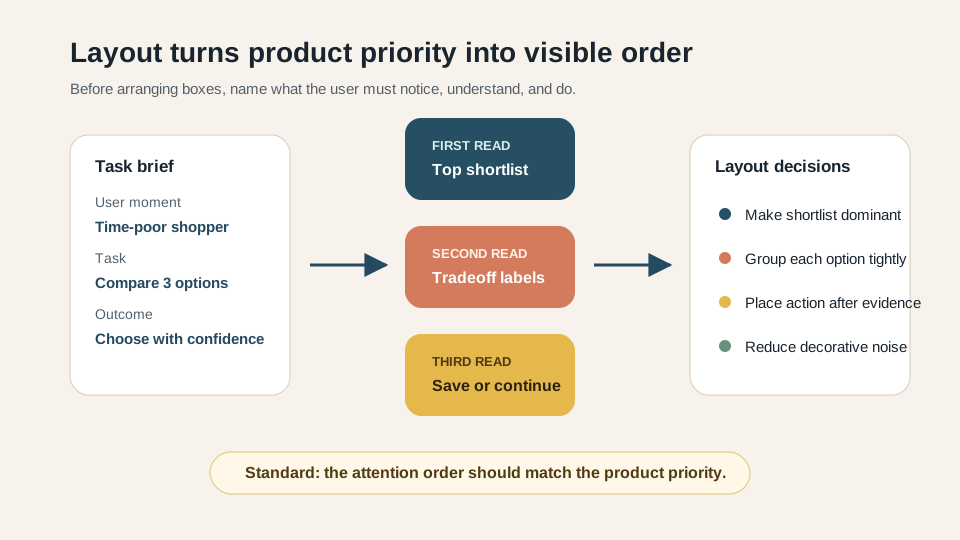
- 01FrameWhat must this layout help the user do?Bring forward the screen job and intended task from the screen-reading lesson. Layout decisions should start from what the screen must help the user notice, understand, and do.
- 02RankWhat is the intended attention order?Name the first, second, and third things the user should notice.
- 03GroupWhat belongs together?Place related elements together and separate unrelated decisions.
- 04DecideWhat tradeoff did the layout make?Sketch one mobile layout and one wider layout, then explain what was promoted, reduced, or moved.
Why layout matters professionally
The professional sources behind this session agree that layout is an intentional structure. Apple guidance emphasizes hierarchy, reading order, alignment, spacing, and adaptability. Material, GOV.UK, and USWDS show how design systems make layout repeatable through grids, spacing, gutters, and responsive patterns. NN/g visual design principles explain scale, hierarchy, balance, contrast, and Gestalt grouping.
The professional sources behind this session agree that layout is an intentional structure. Apple guidance emphasizes hierarchy, reading order, alignment, spacing, and adaptability. Material, GOV.UK, and USWDS show how design systems make layout repeatable through grids, spacing, gutters, and responsive patterns. NN/g visual design principles explain scale, hierarchy, balance, contrast, and Gestalt grouping.
W3C accessibility guidance adds an important constraint: a layout should not only work in the ideal screenshot. It should reflow and remain understandable and operable when users zoom, use narrow viewports, or navigate with keyboard focus.
Figma layout guides and auto layout turn these ideas into practice. AI tools such as Figma Make, Stitch, Uizard, and text models can speed up layout variants and critique, but only after the learner can state the layout standard.
For the learner, this becomes a practical rule: a layout is strong when its visual order, structural order, and product priority support the same user task.
- Visual hierarchy guides attention in the order of importance.
- Scale, contrast, balance, and grouping help users understand relationships.
- Grid systems create structure through columns, rows, gutters, and containers.
- Responsive layouts must preserve meaning across screen sizes.
- Accessible layouts must support reflow, logical focus order, readable headings, and clear relationships.
Vocabulary for layout judgment
Session 4 gives the learner language for layout critique. These terms are practical. They help her move beyond "it looks clean" or "it feels busy" into an explanation of attention, relationship, structure, and tradeoff.
Session 4 gives the learner language for layout critique. These terms are practical. They help her move beyond "it looks clean" or "it feels busy" into an explanation of attention, relationship, structure, and tradeoff.
The key phrase is visual hierarchy. Hierarchy is the order of attention. If the screen is supposed to help a user compare three options, but the biggest element is a decorative image, the hierarchy may not match the task.
The second key phrase is layout tradeoff. The learner should learn that every layout promotes something and reduces something else. Good product communication names that choice.
Visual hierarchy
The order in which the layout asks for attention.
Example: The page title first, the comparison result second, and the main action third.
Priority
The most important information or action for the user moment.
Example: For a product comparison screen, the top recommendation and tradeoff may be primary.
Grouping
The placement of related things close together so they feel connected.
Example: Product name, price, key reason, and save action inside the same card.
Spacing
The empty area inside or between elements that signals relationship and separation.
Example: Small gap between label and value; larger gap before a new section.
Grid
A structure of margins, columns, rows, and gutters used to align content consistently.
Example: A single mobile column that becomes a two-column comparison on wider screens.
Content inventory
A ranked list of content pieces and the job each piece performs before the layout is drawn.
Example: Title orients, comparison supports the decision, warning reduces risk, and the button completes the action.
Reflow
The way a layout adapts when the viewport gets narrower, wider, zoomed, or filled with longer content.
Example: A desktop two-column comparison becomes one mobile stack while preserving first, second, and third priority.
Density
The amount of information and visual weight packed into a screen, chosen based on user expertise, task frequency, risk, and device.
Example: A daily operations dashboard can be denser than a first-time account setup screen.
Auto layout
A Figma feature that makes frames arrange their children with direction, padding, gaps, and resizing behavior.
Example: A product card uses vertical auto layout with consistent padding and gap so it survives longer text.
Layout tradeoff
The cost of choosing one layout priority over another.
Example: Showing fewer product cards can make comparison clearer but reduce exploration.
First, second, third
The most useful beginner layout question is: what should be seen first, second, and third? This question turns layout into product reasoning. It also reveals when the visual order does not match the user task.
The most useful beginner layout question is: what should be seen first, second, and third? This question turns layout into product reasoning. It also reveals when the visual order does not match the user task.
A screen always has an attention order, even if nobody designed it deliberately. Large images, high contrast, bright buttons, centered blocks, and unusual spacing all ask for attention. The job of layout is to make that attention intentional.
The learner should write intended priority before sketching. If she sketches first, the layout can become an arrangement exercise. If she ranks first, the sketch becomes an argument about what matters.
Layout begins with product framing
The screen job and intended task should choose the layout hierarchy. User moment, task, context, and desired action change what deserves priority.
The screen job and intended task should choose the layout hierarchy. User moment, task, context, and desired action change what deserves priority.
If the user is time-poor, the layout should reduce exploration and support fast comparison. If the user is new or uncertain, the layout should support orientation and reassurance. If the action is risky or final, the layout should surface cost, consequence, and recovery before commitment.
A useful layout critique should therefore begin with a task brief: because this user is trying to do this in this situation, the layout should make this information prominent first.
Content inventory before layout
A serious layout starts before the artboard. The learner should list the content pieces and name the job of each piece. Is it orienting the user, supporting a decision, enabling action, showing status, building trust, or providing recovery?
A serious layout starts before the artboard. The learner should list the content pieces and name the job of each piece. Is it orienting the user, supporting a decision, enabling action, showing status, building trust, or providing recovery?
This habit is especially important when using AI. If the learner asks AI to design a layout before the content is ranked, the output may look polished while solving the wrong problem. The inventory prompt slows down the first move so the later acceleration is safer.
The output should be a simple content inventory with first, second, and third priority. This inventory becomes the input for Figma frames, auto layout decisions, and AI-generated variants.
I am preparing to design or critique a layout.

Product moment:
[describe the user, task, context, and outcome]

Raw content pieces:
[paste the text, actions, images, data, status, warnings, support links, and recovery options]

Please turn this into a layout content inventory.
Return:
1. Content pieces grouped by job: orientation, decision support, action, status, reassurance, recovery, and optional detail.
2. What should be first, second, and third for this user moment.
3. Which items should be grouped together and why.
4. Which items can be reduced, deferred, collapsed, or removed.
5. One mobile-first order and one desktop order.
6. One risk if we arrange the layout before ranking the content.

Rules:
- Do not create new content unless you label it as a suggestion.
- Keep the language plain.
- Finish with a layout priority sentence.
- Does the inventory include orientation, decision support, action, status, reassurance, and recovery?
- Does it rank the content before sketching?
- Does it group items by user job instead of visual style?
- Does it identify what can be reduced, deferred, or removed?
- Does it provide both a mobile-first order and a wider-screen order?
- The answer jumps straight into a polished layout.
- The answer invents new content without saying it is a suggestion.
- The answer treats all content pieces as equal priority.
- The answer ignores mobile order.
How visual hierarchy is made
Hierarchy is not a mystery. It is built from visible signals: scale, weight, contrast, proximity, alignment, and repetition. The beginner mistake is using all signals at once on too many things.
Hierarchy is not a mystery. It is built from visible signals: scale, weight, contrast, proximity, alignment, and repetition. The beginner mistake is using all signals at once on too many things.
A strong layout usually has fewer hierarchy levels than a beginner expects. One strong title, one support level, one body level, and one clear action can be more effective than six sizes and several colors.
The learner should use the squint test informally: if she blurs the details, can she still tell what the page wants her to notice first? If not, the hierarchy is weak.
- Scale: use relative size to rank information.
- Weight: use boldness or emphasis sparingly.
- Contrast: separate what is different or important.
- Proximity: place related items together.
- Alignment: create a track for scanning and comparison.
- Repetition: use consistent patterns so users can predict structure.
Grouping and spacing
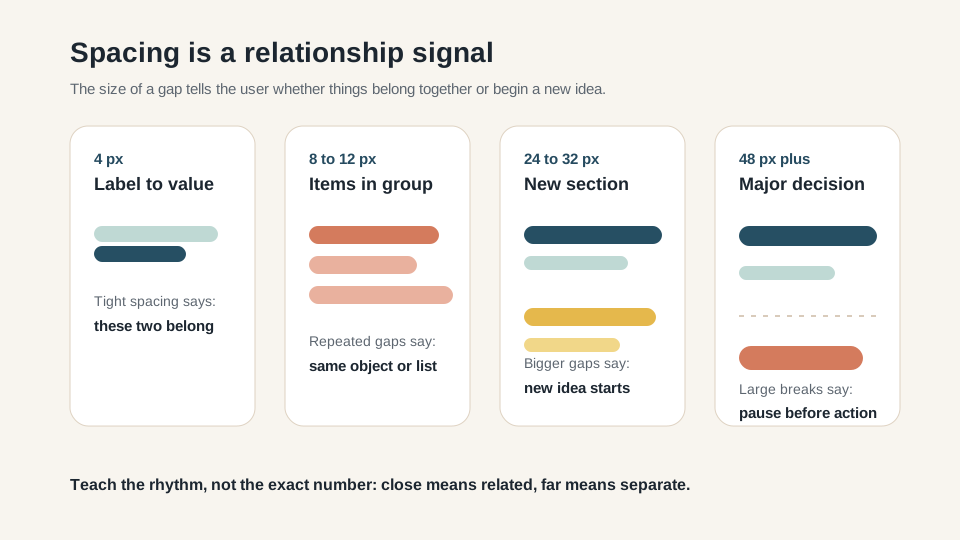
Grouping and spacing are often the fastest way to improve a layout. If elements belong to the same decision, they should feel visually connected. If a new decision begins, the layout should create separation.
Grouping and spacing are often the fastest way to improve a layout. If elements belong to the same decision, they should feel visually connected. If a new decision begins, the layout should create separation.
Spacing is not only decoration. It carries meaning. A small gap can say "these belong together." A larger gap can say "new section." Random spacing makes the screen feel less trustworthy because users cannot predict how the page is organized.
For product-owner communication, grouping can be explained in user terms: I grouped these details because the user needs them together before choosing.
Alignment and grid structure
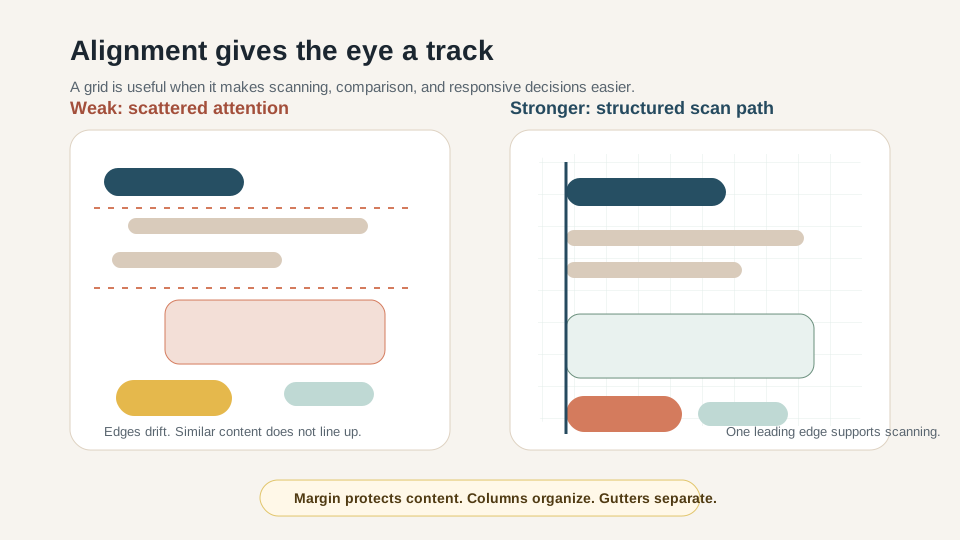
Alignment helps people scan. When text, labels, prices, or actions begin at predictable positions, the eye can move through the page with less effort.
Alignment helps people scan. When text, labels, prices, or actions begin at predictable positions, the eye can move through the page with less effort.
A grid is one way to make alignment repeatable. The learner does not need to master grid systems in this session, but she should understand margin, column, gutter, and content block. These words help her inspect real interfaces and build cleaner sketches.
The grid should not become the goal. A grid supports content priority. If a layout follows the grid but hides the primary task, the grid is being used neatly but not wisely.
- Use a clear left or leading edge for text-heavy content.
- Line up similar data to make comparison easier.
- Keep primary actions near the decision they complete.
- Use consistent margins and gutters so sections feel intentional.
- Break alignment only when there is a deliberate reason.
Responsive and reflow-aware layout
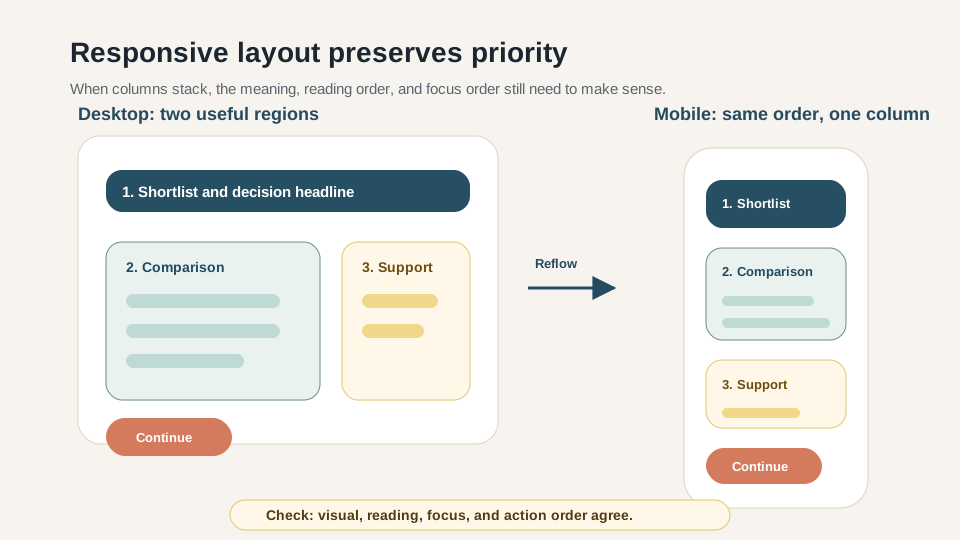
A layout that only works in the perfect desktop screenshot is not finished. Good layout thinking includes narrow screens, longer text, zoom, variable content, and different user settings.
A layout that only works in the perfect desktop screenshot is not finished. Good layout thinking includes narrow screens, longer text, zoom, variable content, and different user settings.
GOV.UK guidance is useful here because it starts from small screens and constrains content width for readability. USWDS shows responsive grids and gutters. W3C reflow guidance reminds us that layout must preserve information and function when users change viewport or zoom conditions.
The learner should practice drawing mobile first because mobile forces priority. If everything cannot fit, the product decision becomes visible: what comes first, what can wait, and what should collapse or move?
Accessibility as layout quality
Accessibility is part of layout quality. A layout may look clear to a sighted mouse user and still confuse someone navigating by keyboard, screen reader, zoom, or a different device.
Accessibility is part of layout quality. A layout may look clear to a sighted mouse user and still confuse someone navigating by keyboard, screen reader, zoom, or a different device.
Focus order matters because people who use the keyboard move through interactive elements in sequence. Reflow matters because people may zoom or use narrow viewports. Headings matter because they create structure for scanning and assistive technology.
The learner does not need to audit WCAG in full. She should learn the beginner layout question: if the visual arrangement changes, does the structure still make sense and remain usable?
- Does visual order match reading order?
- Does keyboard focus move through controls logically?
- Do headings describe real sections?
- Do labels and relationships still make sense without color or position alone?
- Can the layout tolerate longer text, zoom, or a narrow viewport?
Density and tradeoff
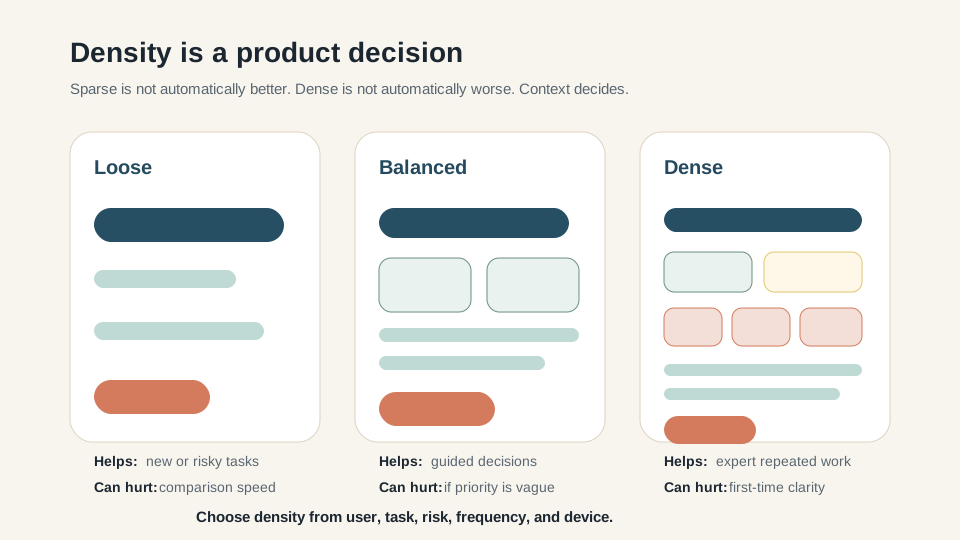
Density is a serious product decision. Sparse screens feel calmer and can support beginners, but they may hide comparison and require more scrolling. Dense screens can help expert work, but they may overwhelm or reduce trust.
Density is a serious product decision. Sparse screens feel calmer and can support beginners, but they may hide comparison and require more scrolling. Dense screens can help expert work, but they may overwhelm or reduce trust.
The right density depends on task frequency, user expertise, device, risk, and content type. A dashboard for daily operations can be denser than a government form for a first-time applicant.
The learner should not say "make it cleaner" as a default fix. She should say what should become quieter, what should remain visible, and what tradeoff that creates.
AI layout critique lab
AI can be helpful for layout critique because it can generate alternative structures and name possible tradeoffs. The prompt must be specific. If the learner asks "is this layout good?" AI will often answer with generic design advice.
AI can be helpful for layout critique because it can generate alternative structures and name possible tradeoffs. The prompt must be specific. If the learner asks "is this layout good?" AI will often answer with generic design advice.
A stronger prompt includes the screen job, content pieces, and a request for intended priority, current attention order, grouping, spacing, responsive risk, accessibility risk, and two options.
The learner should use AI as a layout sparring partner. Accept specific evidence-backed observations, adapt broad suggestions into the current product context, and reject style advice that ignores user task or tradeoff.
I am learning to review and improve layout as a product + design + AI learner.

Screen job and intended task:
[paste the screen job, user moment, and task from the screen-reading lesson]

Screen or rough sketch:
[describe the screen, paste a screenshot description, or list the content pieces]

Please analyze the layout in simple English, but with serious design judgment.
Return:
1. Screen goal: what decision or task should this layout support?
2. Content inventory: list the visible ingredients and their jobs.
3. Intended priority: what should be seen first, second, and third?
4. Current attention order: what do people probably notice first, second, and third now?
5. Grouping: which elements belong together, which are separated too much, and which are competing?
6. Spacing: what gap choices communicate relationship, separation, or confusion?
7. Alignment and grid: where does the screen help or hurt scanning and comparison?
8. Primary action: is the main action findable after the user has enough information to act?
9. Density: is the screen too loose, too dense, or appropriately dense for the user and task?
10. Responsive risk: what might break, crowd, hide, or change order on a smaller screen?
11. Accessibility risk: what might be hard to read, reach, focus, or understand?
12. Two layout options: give one conservative option and one bolder option.
13. Recommendation: choose one option and explain the tradeoff.

Rules:
- Do not redesign the whole product.
- Use the screen job and intended task as the reason for layout priority.
- Do not treat beauty as the main goal.
- Do not invent research, metrics, or brand requirements.
- Mark assumptions clearly.
- Finish with one product decision sentence: I would change ____ first because ____ so the user can ____.
- Does the answer begin with the user task and screen goal?
- Does it compare intended priority with current attention order?
- Does it talk about grouping, spacing, and alignment with evidence?
- Does it name responsive and accessibility risks?
- Does it offer two layout options with tradeoffs?
- Does the learner accept, adapt, and reject AI feedback instead of taking it whole?
- The answer says only that the screen should be cleaner or more modern.
- The answer recommends a full redesign when the task asks for one priority improvement.
- The answer ignores the screen job, user moment, and intended task.
- The answer talks about color and style but not attention order.
- The answer invents user research, metrics, or brand requirements.
Figma setup and layout guides lab
This is the first serious layout tool walkthrough. The learner does not need to master Figma in one lesson. She needs to open the tool, create frames, add guides, place rough content, and explain the structure.
This is the first serious layout tool walkthrough. The learner does not need to master Figma in one lesson. She needs to open the tool, create frames, add guides, place rough content, and explain the structure.
The tutor should keep the experience calm and practical. Figma is introduced as the place where design decisions become visible and testable. The point is not pixel perfection; the point is seeing whether priority, grouping, spacing, and alignment survive in an actual workspace.
The saved artifact should include a Figma link or screenshot, a short note naming the layout priority, and one thing the learner revised after critique.
- 01Step 1Open the workspaceCreate or open a Figma account. Start a new design file named Layout and Spacing Studio.
- 02Step 2Create two framesCreate a mobile frame around 390 pixels wide and a desktop frame around 1280 pixels wide. Put them side by side.
- 03Step 3Turn on structureAdd layout guides: a simple single-column mobile guide and a desktop grid with columns and gutters.
- 04Step 4Place content blocksBuild rough blocks for title, summary, decision content, primary action, secondary action, status, and recovery.
- Mobile frame and desktop frame are visible in one file.
- The file uses layout guides or visible alignment structure.
- The learner labels first, second, and third priority beside the frames.
- The rough layout uses simple blocks before visual polish.
- The learner saves the file link or exports a screenshot for the studio artifact.
Figma auto layout lab
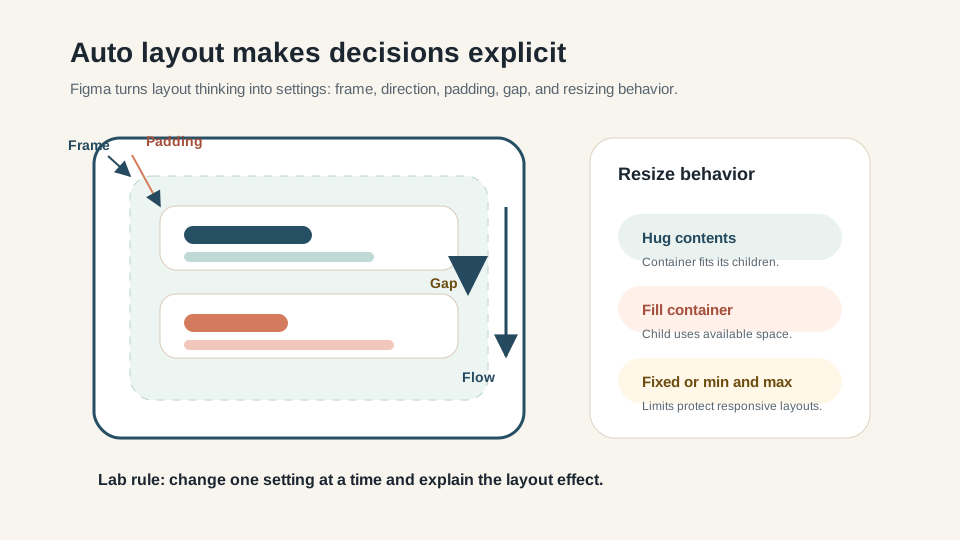
Auto layout is where layout fundamentals become a living system. A beginner can see that related content belongs inside a frame, padding protects the inside of the frame, gap controls the relationship between children, and resizing behavior decides what happens when the screen changes.
Auto layout is where layout fundamentals become a living system. A beginner can see that related content belongs inside a frame, padding protects the inside of the frame, gap controls the relationship between children, and resizing behavior decides what happens when the screen changes.
The tutor should demonstrate one card or list item. Put the title, helper text, and action into a frame. Apply auto layout, adjust padding and gap, then resize the parent frame. The learner should watch how the content behaves and explain whether the behavior supports the task.
The important habit is testing. A layout that looks good at one width may break when text is longer or the screen is narrower. The learner should resize, add a longer label, and check whether the layout still makes sense.
I am building a simple Figma layout and want to use auto layout thoughtfully.

Current layout goal:
[describe the frame, group, card, list, or section]

Content inside it:
[list the child elements]

Please recommend auto layout settings.
Return:
1. Container: what should be a frame and why.
2. Direction: horizontal, vertical, wrapped, or nested.
3. Padding: inside space and why it supports the relationship.
4. Gap: space between children and what relationship it communicates.
5. Sizing: fixed, hug contents, fill container, min, or max behavior.
6. Responsive risk: what may break when content gets longer or the frame changes size.
7. One test: what I should resize or change in Figma to prove the layout behaves well.

Rules:
- Explain settings in beginner-friendly language.
- Tie every setting to the product task or content relationship.
- Do not recommend visual polish before structure.
- Does the AI recommend frames based on related content groups?
- Does it explain padding as inside space and gap as relationship space?
- Does it choose direction and nesting intentionally?
- Does it mention hug, fill, fixed, min, or max behavior in beginner language?
- Does it include one resize test the learner can perform in Figma?
- The answer recommends random padding values with no relationship reason.
- The answer tells the learner to polish the UI before grouping content.
- The answer ignores longer text or frame resizing.
- The answer treats auto layout as a magic fix instead of a behavior system.
AI layout generation tool lab
AI tools belong in Lesson 4, but they should enter at the right moment. If the learner generates a UI before defining the layout criteria, the tool can produce attractive output that teaches the wrong habit. Criteria first, generation second, critique third.
AI tools belong in Lesson 4, but they should enter at the right moment. If the learner generates a UI before defining the layout criteria, the tool can produce attractive output that teaches the wrong habit. Criteria first, generation second, critique third.
Figma Make, Google Stitch, and Uizard are useful because they can create or rebuild interface layouts quickly. The teaching move is to make students compare AI output against the same fundamentals: first read, grouping, spacing, alignment, density, reflow, accessibility, and action placement.
The saved artifact should include the AI prompt, one generated or suggested variant, and a short accept/adapt/reject note. This trains fast movement with visible judgment.
I want to generate one AI layout variant after I have already defined the layout criteria.

Product moment:
[user, task, context, outcome]

Layout criteria:
- First read:
- Second read:
- Third read:
- Grouping rule:
- Density choice:
- Responsive requirement:
- Accessibility requirement:

Please generate a layout concept for a mobile screen and a desktop screen.
Return:
1. A simple structure for the mobile layout.
2. A simple structure for the desktop layout.
3. Auto layout or component behavior I should use in Figma.
4. What the AI-generated version might get wrong.
5. A short checklist I should use before accepting the variant.

Rules:
- Do not optimize for looking impressive.
- Do not add extra features.
- Preserve the product priority and explain the tradeoff.
- Does the prompt define first, second, and third priority before asking for a variant?
- Does it include grouping, density, responsive, and accessibility criteria?
- Does the generated output preserve the product moment instead of adding features?
- Does the learner compare the variant against the Lesson 4 checklist?
- Does the learner write accept, adapt, and reject notes?
- The AI output looks impressive but changes the task.
- The AI output adds new features or content that were not requested.
- The mobile and desktop layouts use different priorities.
- The learner accepts the variant without checking reflow, focus order, or action placement.
- Figma Make: optional path for prompting a functional UI/prototype variant inside the Figma ecosystem.
- Google Stitch: optional path for quickly generating and connecting app screens from a design prompt.
- Uizard Screenshot Scanner: optional path for turning a safe practice screenshot into an editable mockup for inspection.
- Text model: always available for critique, content inventory, tradeoff generation, and checklist review.
Responsive critique lab
Responsive thinking deserves its own AI check because layout decisions often fail when columns become stacks. The learner should compare the desktop order and mobile order explicitly, then ask whether the same product priority survives.
Responsive thinking deserves its own AI check because layout decisions often fail when columns become stacks. The learner should compare the desktop order and mobile order explicitly, then ask whether the same product priority survives.
This prompt also prepares the student for later product-owner work. When a team says a feature is "responsive," the learner should be able to ask what happens to priority, reading order, focus order, and action placement when the layout changes size.
I am checking whether a layout works across mobile and desktop.

Screen job:
[paste the screen job]

Desktop order:
[list the visible order from top to bottom and left to right]

Mobile order:
[list the stacked order]

Please review the responsive layout.
Return:
1. Whether the priority order survives on mobile.
2. Whether the reading order and focus order still make sense.
3. Where content may become too long, crowded, hidden, or hard to reach.
4. Which action should stay near the decision content.
5. Which detail can move lower, collapse, or become secondary.
6. One accessibility or reflow risk to test.
7. One recommended responsive change and its tradeoff.
- Does the mobile order preserve the intended priority?
- Does the desktop order add useful comparison without changing the task?
- Does the primary action remain near the decision content?
- Does the layout avoid hidden, crowded, or unreachable controls?
- Does the learner identify one reflow or focus-order risk to test?
- The answer treats desktop and mobile as separate products.
- The answer hides important decision support on mobile.
- The answer moves the action before the user has enough information.
- The answer ignores focus order or keyboard navigation.
Worked examples
A strong layout explanation names priority and tradeoff. It does not need to sound like an art critique. It should connect visual decisions to the user task.
A strong layout explanation names priority and tradeoff. It does not need to sound like an art critique. It should connect visual decisions to the user task.
In the product recommendation example, the layout should probably promote comparison and tradeoff labels over a large brand story. In the service start example, required documents may deserve early attention because they prevent wasted effort.
The learner should practice explaining the layout aloud: I made this first because..., I grouped these because..., I moved this lower because..., the tradeoff is...
Studio exercise and rubric
The studio output is a layout priority board. It should include the screen job or task brief, content inventory, priority order, mobile frame, wider frame, Figma structure notes, AI critique notes, optional AI variant notes, and one final product decision sentence.
The studio output is a layout priority board. It should include the screen job or task brief, content inventory, priority order, mobile frame, wider frame, Figma structure notes, AI critique notes, optional AI variant notes, and one final product decision sentence.
The tutor should keep the artifact deliberately low fidelity. This is not a branding or visual polish session. It is a hierarchy, grouping, spacing, responsive behavior, and tradeoff session.
- 01Part AChoose the product momentUse a screen from Session 2 or write a short task brief for a familiar product moment.
- 02Part BList layout ingredientsList all content pieces: title, summary, media, data, support, action, secondary links, status, and recovery.
- 03Part CRank and groupRank first, second, and third priority, then group related elements.
- 04Part DBuild, critique, reviseBuild rough mobile and desktop frames in Figma, run the Session 4 prompt, then revise one meaningful layout decision.
- 05Part EGenerate one variantOptionally generate one AI layout variant with Figma Make, Stitch, Uizard, or a text model, then mark accept, adapt, and reject notes.
- Uses the screen job and intended task to justify priority.
- Names first, second, and third attention order.
- Groups related content clearly.
- Uses spacing to show relationship and separation.
- Aligns similar elements for scanning or comparison.
- Places the primary action near the decision it completes.
- Considers mobile stacking, reflow, and focus order.
- Uses Figma layout guides or auto layout for at least one visible structure decision.
- Explains one tradeoff and one revision after AI critique.
Home study and follow-up reading
For home study, the learner should collect three safe app or web screens. For each, she should mark what appears first, second, and third; identify one grouping problem; name one spacing or alignment issue; and write one layout tradeoff sentence.
For home study, the learner should collect three safe app or web screens. For each, she should mark what appears first, second, and third; identify one grouping problem; name one spacing or alignment issue; and write one layout tradeoff sentence.
The deeper practice is to rebuild one screen roughly in Figma as mobile and desktop frames, add layout guides, apply auto layout to one group, run the critique prompt, and save the before or after artifact with a short decision note.
The lecturer can use the references below to deepen examples around visual hierarchy, grids, spacing tokens, responsive structure, accessibility, Figma layout guides, Figma auto layout, and current AI UI tools.
Follow-up reading for the lecturer
Resources and submission
Keep the review materials close, but separate from the main path.
Use these blocks when preparing the final artifact or checking optional references after the guided tutorial.
Artifact, self-check, and base prompt
Start from a screen job or task brief, list screen content pieces, rank first/second/third priority, group related content, create mobile and desktop Figma frames with layout guides, apply auto layout to one group, run AI critique, optionally generate one AI variant, then revise one meaningful layout decision.
- Can the learner use the screen job or task brief to justify layout priority?
- Can the learner name intended first, second, and third attention order?
- Can the learner explain grouping, spacing, alignment, and grid choices in plain language?
- Can the learner create a Figma file with mobile and desktop frames, layout guides, and one auto layout group?
- Can the learner place the primary action near the decision it completes?
- Can the learner consider mobile stacking, reflow, focus order, and accessibility risk?
- Can the learner use AI for critique or variant generation while accepting, adapting, and rejecting suggestions?
- Can the learner compare two layout options and explain the tradeoff?
I am learning to review and improve layout as a product + design + AI learner.

Screen job and intended task:
[paste the screen job, user moment, and task from the screen-reading lesson]

Screen or rough sketch:
[describe the screen, paste a screenshot description, or list the content pieces]

Please analyze the layout in simple English, but with serious design judgment.
Return:
1. Screen goal: what decision or task should this layout support?
2. Content inventory: list the visible ingredients and their jobs.
3. Intended priority: what should be seen first, second, and third?
4. Current attention order: what do people probably notice first, second, and third now?
5. Grouping: which elements belong together, which are separated too much, and which are competing?
6. Spacing: what gap choices communicate relationship, separation, or confusion?
7. Alignment and grid: where does the screen help or hurt scanning and comparison?
8. Primary action: is the main action findable after the user has enough information to act?
9. Density: is the screen too loose, too dense, or appropriately dense for the user and task?
10. Responsive risk: what might break, crowd, hide, or change order on a smaller screen?
11. Accessibility risk: what might be hard to read, reach, focus, or understand?
12. Two layout options: give one conservative option and one bolder option.
13. Recommendation: choose one option and explain the tradeoff.

Rules:
- Do not redesign the whole product.
- Use the screen job and intended task as the reason for layout priority.
- Do not treat beauty as the main goal.
- Do not invent research, metrics, or brand requirements.
- Mark assumptions clearly.
- Finish with one product decision sentence: I would change ____ first because ____ so the user can ____.
References and web examples
References
Professional layout guidance for visual hierarchy, reading order, alignment, consistent spacing, safe areas, and adaptable interfaces.
Material Design: layout overviewMaterial guidance for layout foundations, adaptive structure, panes, and using space to support hierarchy across devices.
Nielsen Norman Group: 5 principles of visual design in UXA compact visual-design reference for scale, hierarchy, balance, contrast, and Gestalt principles. Useful for teaching layout as attention control.
GOV.UK Design System: layoutA clear service-design reference for page layout, small-screen-first thinking, line length, page wrappers, and grid columns.
U.S. Web Design System: layout gridA design-system reference for structuring pages with containers, rows, columns, gutters, responsive classes, and spacing tokens.
U.S. Web Design System: spacing unitsA concrete spacing-token reference for teaching that spacing should be repeatable instead of visually guessed every time.
W3C WCAG: reflowAccessibility guidance for layouts that reflow without losing information or function when users zoom or use narrow viewports.
W3C WCAG: focus orderAccessibility guidance for logical focus order, especially when visual layout changes across screen sizes.
W3C WCAG: target size minimumAccessibility guidance for minimum target size, useful when spacing and density affect whether controls are easy to reach.
Figma Help Center: create layout guidesFigma guidance for adding layout grids, rows, columns, and guides so learners can practice structure inside a real design tool.
Figma Help Center: guide to auto layoutPractical tool guidance for auto layout, padding, gaps, resizing behavior, nesting, and responsive design work in Figma.
Figma MakeCurrent Figma AI product for prompting functional prototypes and refining generated output with design-system context.
Google Labs: StitchGoogle Labs AI UI design tool that can generate and connect app screens, useful as an optional AI-variant lab after students define layout criteria.
Uizard Screenshot ScannerAI UI tool for turning screenshots into editable mockups, useful when students want to inspect or rebuild a layout from a safe practice screenshot.
Web examples
Use this to show that layout starts with structural decisions: small screens first, readable line length, main content width, and grid columns.
Material DesignLayout overviewUse this to show how a mature design system treats layout as a repeatable structure across devices, not a one-off artboard decision.
Nielsen Norman Group5 principles of visual design in UXUse this to teach visual hierarchy as a ranked attention system using scale, contrast, balance, and grouping.
U.S. Web Design SystemLayout gridUse this to connect hand sketches to real product systems: containers, rows, columns, gutters, and responsive behavior.
U.S. Web Design SystemSpacing unitsUse spacing units to teach that professional spacing is a reusable rhythm. Students should practice choosing a few spacing values, not manually guessing every gap.
W3C WAIUnderstanding reflowUse this when teaching that a layout is not complete if it only works at one screen size. Content must reflow and remain usable.
Figma Help CenterGuide to auto layoutUse this as the practical Figma bridge. Auto layout teaches padding, gap, fill, hug, fixed size, and nested layout decisions.
Figma Help CenterCreate layout guidesUse this for the interactive lab: students create mobile and desktop frames, add layout guides, and make relationships explicit with Figma structure.
FigmaFigma MakeUse this only after students define layout criteria. The learning value is comparing AI-generated layout variants against priority, grouping, reflow, and accessibility checks.
Google LabsStitchUse this as an optional alternative AI practice path: students generate or connect screens, then evaluate whether the layout order and flow survive interaction.
UizardScreenshot ScannerUse this when a student wants to turn a safe screenshot into an editable mockup, then inspect the layout instead of only describing it in text.